.png)
Merchant Guide
How to work in the Unlimco dashboard: view transactions, make payouts, upload registries, check balances and connect your server to the platform.
Dashboard: my.unlimco.io · Version 1.1 of 11.10.2026 · Support: support@unlimco.ru
1. First steps
The dashboard shows what is happening with your money: incoming payments, payouts, balances and support requests. This guide describes everything a regular merchant user sees.
1.1 Signing in
Your login and password are issued by your company administrator. Enter them and click Sign in. The eye icon in the password field shows the characters you have typed.
The Remember me checkbox keeps you signed in on this device, so you don’t have to enter the password every time. Turn it on only on your own computer, never on someone else’s or a shared one.
The RU / EN language switch is in the top right corner of the sign-in screen. The selected language is remembered and applies inside the dashboard too, where the language is switched with a button in the top bar.
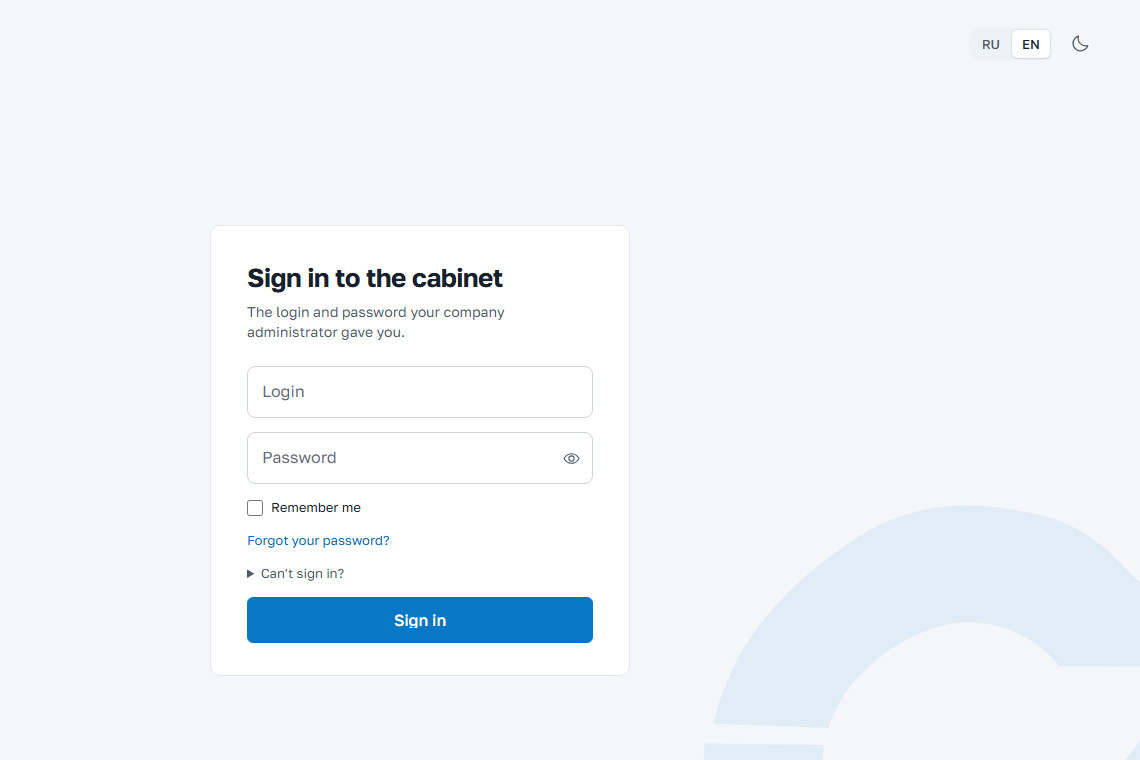
- Login issued by the administrator.
- Password. The eye icon shows the characters entered.
- Remember me checkbox.
- Forgot your password? link.
- Can’t sign in? hint.
- Sign in button.
- Language switch.
If two-factor protection is enabled, the dashboard asks for a confirmation code after the password. The screen tells you where the code was sent: by email, by SMS or to the authenticator app. Enter the code and click Confirm. If the code hasn’t arrived, you can request it again in a couple of minutes; the countdown is shown under the field. Wrong login? Click Sign in with another login.
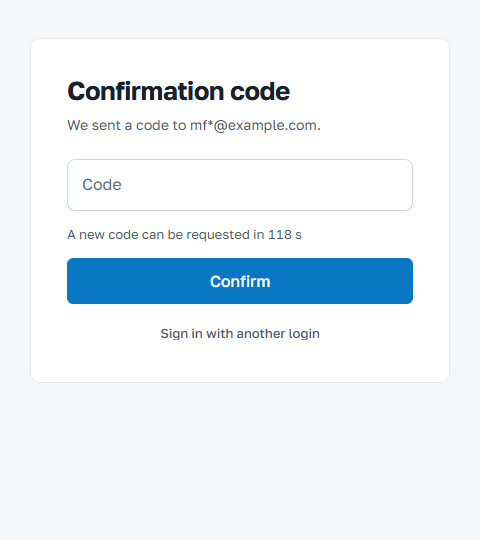
- Code field.
- Countdown until the code can be resent.
If the password is wrong, the dashboard says so and suggests checking the keyboard layout and Caps Lock. After several failed attempts, sign-in is closed for a few minutes, and the screen shows how long to wait. If the account is blocked, the dashboard says so: contact support. If sign-in from your IP address is not allowed, contact your company administrator.
If sign-in fails for no obvious reason or the page behaves strangely, expand the Can’t sign in? hint. It has three steps: reload the page without cache (Ctrl + F5, on Mac Cmd + Shift + R); clear the site data in your browser settings and open the dashboard again; and if that doesn’t help, write to support.
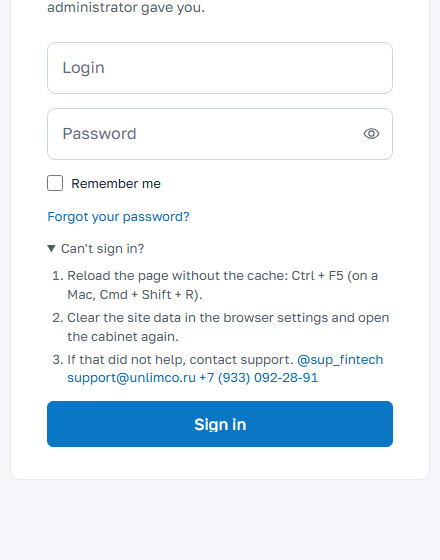
The support address for your account is always shown under the sign-in form. Other contacts are listed in the Contacts chapter.
1.2 Forgot your password
On the sign-in screen, click Forgot your password? and follow three steps.
- Enter your login or email and click Send code. The dashboard always gives the same answer, whether or not such an account exists, so an outsider cannot find out who is registered.
- Open the email and enter the code. The code is valid for 15 minutes; only the last one sent works. If there is no email, check your Spam folder and request the code again.
- Create a new password and repeat it. You set the password yourself: we never send it by email or any other way. The only requirement is the minimum length shown on the page. Click Change password.
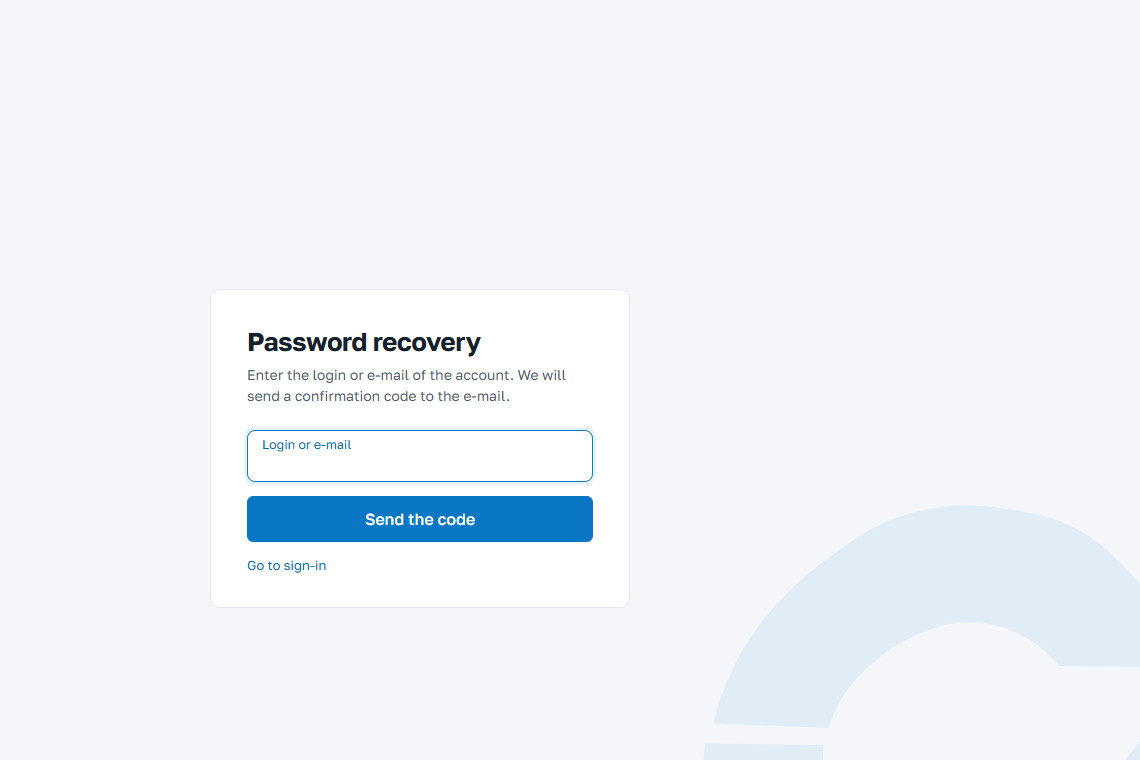
- Login or email.
- Send code button.
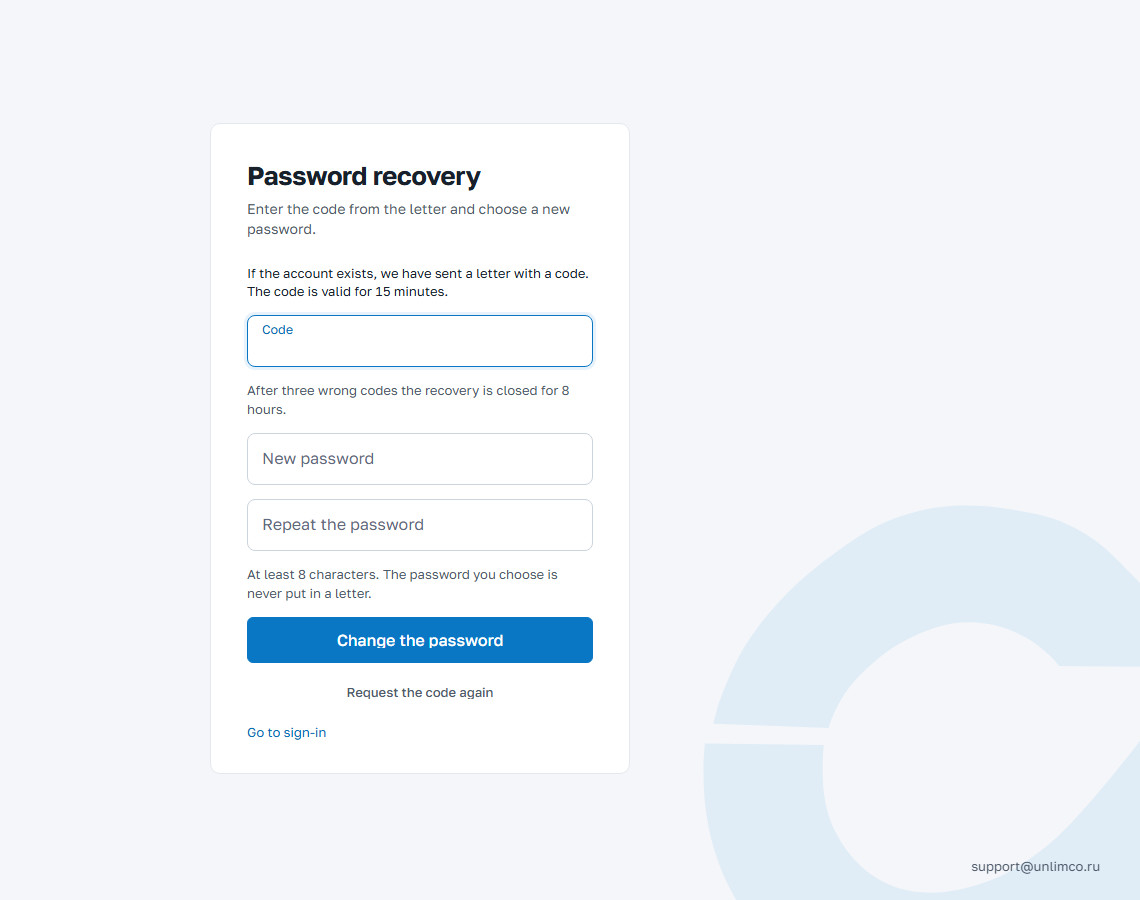
After the password is changed, all existing sessions are ended, and you will need to sign in again on every device with the new password. Two-factor protection stays on: password recovery does not turn it off. If you have lost your phone, write to your administrator, who will reset the second factor.
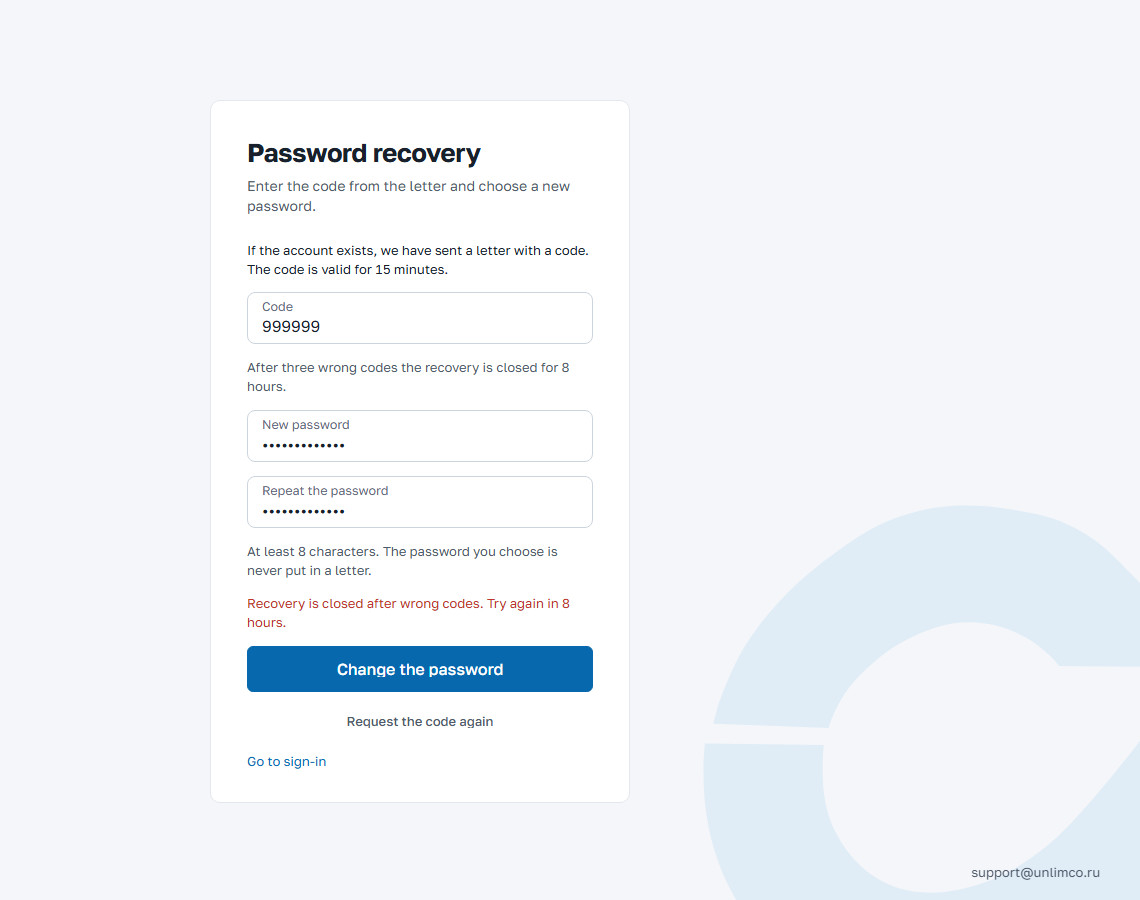
After three wrong codes in a row, recovery is closed for 8 hours. The dashboard says so and shows when you can try again. During this time you cannot request a new code — this protects against guessing. If you don’t want to wait, contact your company administrator or support.
1.3 Screen layout
The menu is on the left, the search bar and control icons are at the top, and the work area is in the middle.
The menu has four groups: Operations, Money, Connections and Help. Click a group to expand it. The menu shows only the sections you have permission for. If a section you need is missing, ask the merchant administrator to grant the permission.
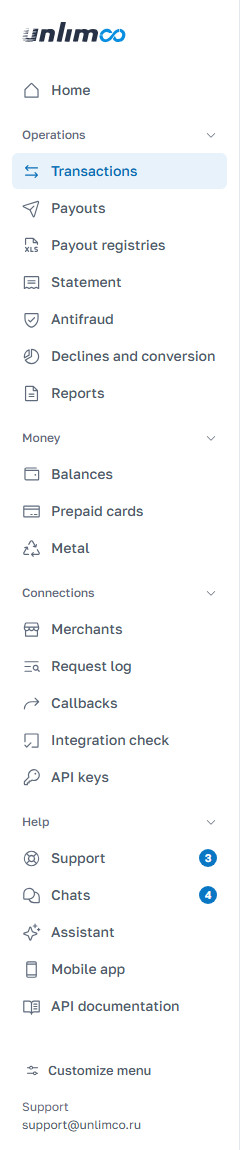
- Operations group expanded: transactions, payouts, registries, statement, antifraud, declines and reports.
- Customize menu button at the bottom.
You can adjust the menu to suit you: change the order of groups and items, hide items you don’t need, pin a group open. The settings are saved in your account and apply on any device.
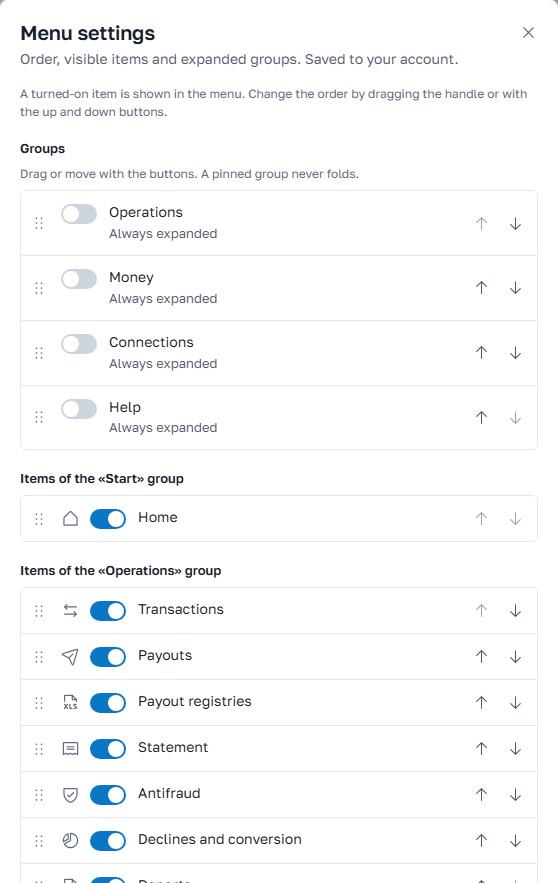
The Restore defaults button returns the menu to its original state. You cannot hide every item: at least one must remain.
1.4 Search across the dashboard
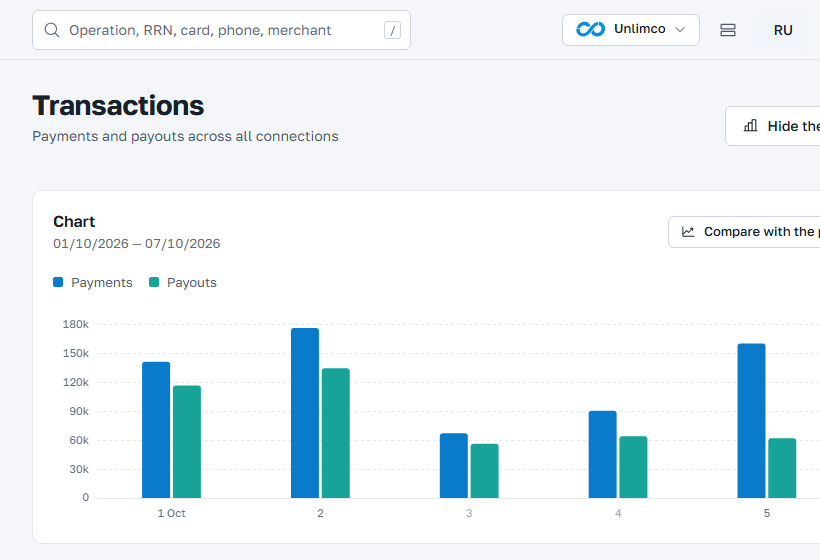
The search bar at the top finds transactions, payouts, registries, merchants and terminals. It recognises what you enter: transaction number, RRN, order number, full card number or its first 6 and last 4 digits, phone number, amount, bank or SBP number, registry name, merchant name or TIN. Suggestions appear as you type; move through them with the arrow keys and open one with Enter. While only a few characters are entered, the drop-down shows what you can search for.
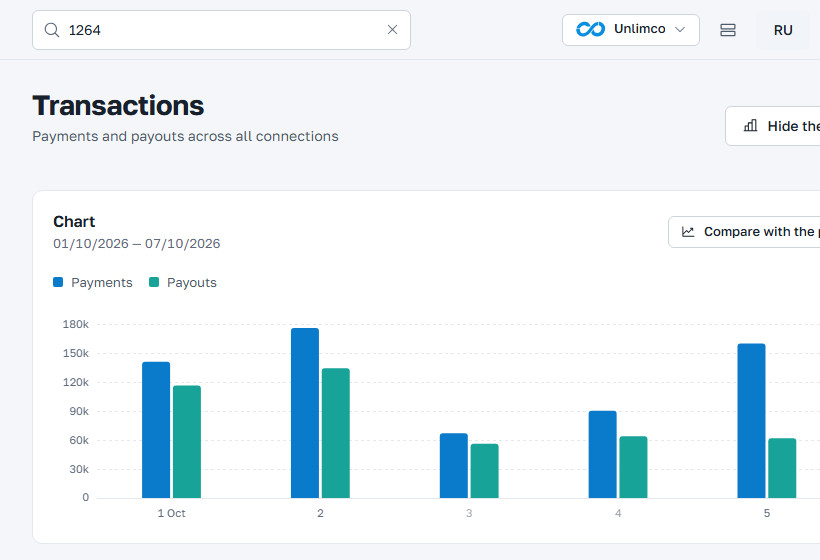
If you click the empty search bar, the operations, merchants and terminals you opened recently appear below it — a quick way to get back to what you worked on yesterday.
An RRN is 12 digits. Enter the leading zeros too — they are part of the number. Card numbers and phone numbers are not added to the page address and are not saved in the search history.
1.5 Smart search in lists
The lists of payouts, registries, registry rows and statements have a single search bar on top. You don’t need to choose which field to search: type the value, and a Searching as hint under the bar shows how the dashboard understood it. Press Enter to apply.
| What you enter | How the dashboard understands it |
|---|---|
| Full card number | Card number. In lists that store only the masked number, the search uses the first 6 and last 4 digits, and the full number never leaves your browser. |
First 6 and last 4 digits, e.g. 427601 1111 |
First 6 and last 4 digits of the card. |
Only the last 4 digits, e.g. *1111 |
Last 4 digits of the card. |
Amount, e.g. 12450.50 or 12450 ₽ |
Exact amount. |
From–to, e.g. 1000-5000 or from 1000 to 5000 |
Amount range. You can also use >1000 or <5000. |
Transaction number, e.g. tx_8800480 or #8800480 |
Our transaction number. |
| Order number, bank number, SBP number | Merchant order number, processing number or SBP number. |
| Phone | Recipient’s phone number. |
| Email or name | Email or name. |
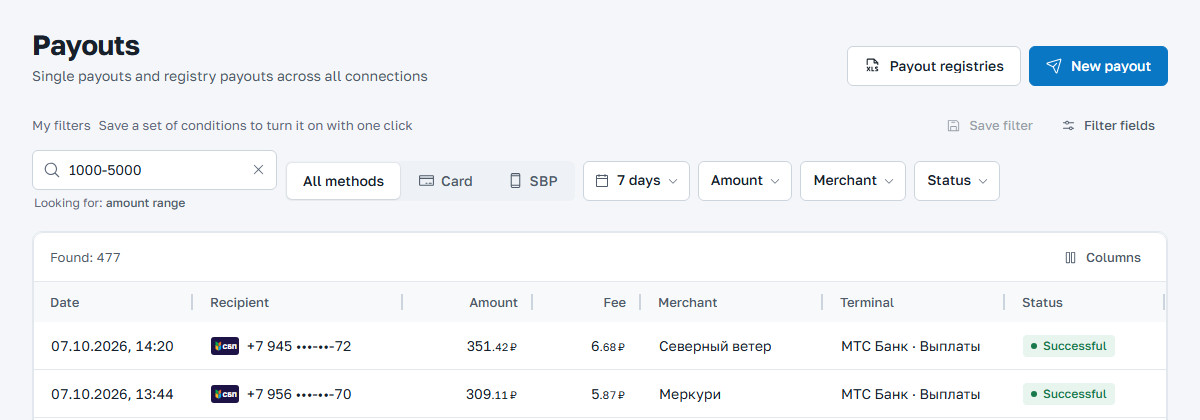
You can also set an amount range with the Amount button next to the search bar: fill in From and To, then click Apply. The Reset button clears the range.
The “Searching as” hint shows only the type of value, not the value itself. If the
dashboard didn’t understand it the way you meant, enter the value more fully: the full card
number, the ₽ sign after an amount, or tx_ before a number.
1.6 Top bar: notifications, theme, profile
To the right of the search bar are icons and your name. The bell opens notifications: payouts waiting for a response from the bank, declines, outage messages, sign-ins from a new device. Mark as read clears the red counter.
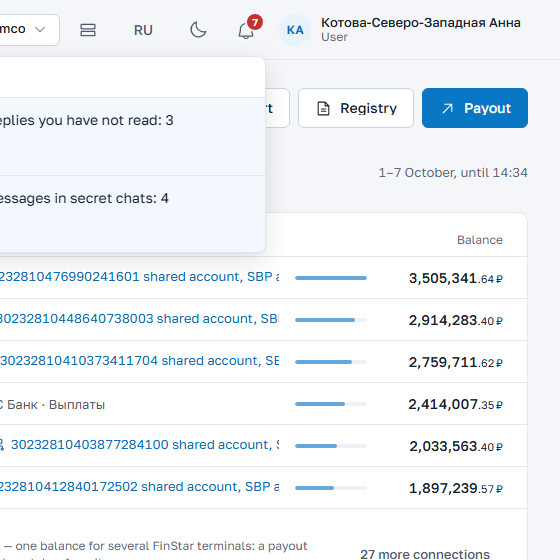
The next icon switches between the light and dark theme. Another one changes table density: Comfortable or Compact. The button with the language code (EN or RU) changes the dashboard language: section names, labels and hints. Clicking your name opens the profile menu. The Support button in the corner of the screen is available from any section.
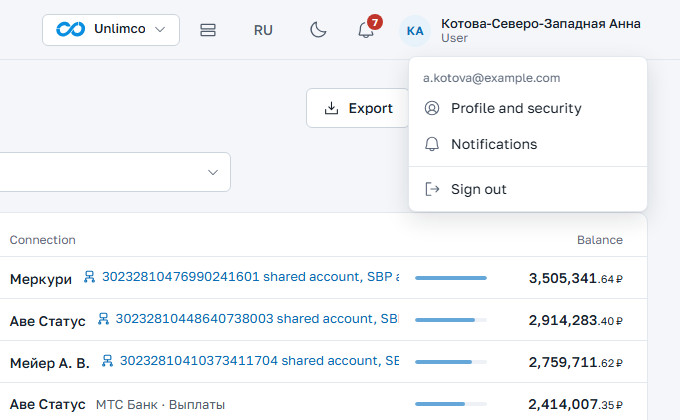
You choose which notifications are sent by email and to the mobile app. See Profile and security → Notifications.
1.7 Service messages
During scheduled maintenance or an outage, a coloured banner appears above the page. There are three levels: Information, Warning and Outage. The text explains what is happening and what to do. The banner disappears once a Unlimco employee removes it.

If operations are declined during a bank outage, the decline reason says “Partner bank did not respond”, and the client’s money is not debited.
2. Home
The first page after sign-in. It shows the balance, turnover for the period, what needs your attention, and the latest operations.
2.1 Period, merchant and quick actions
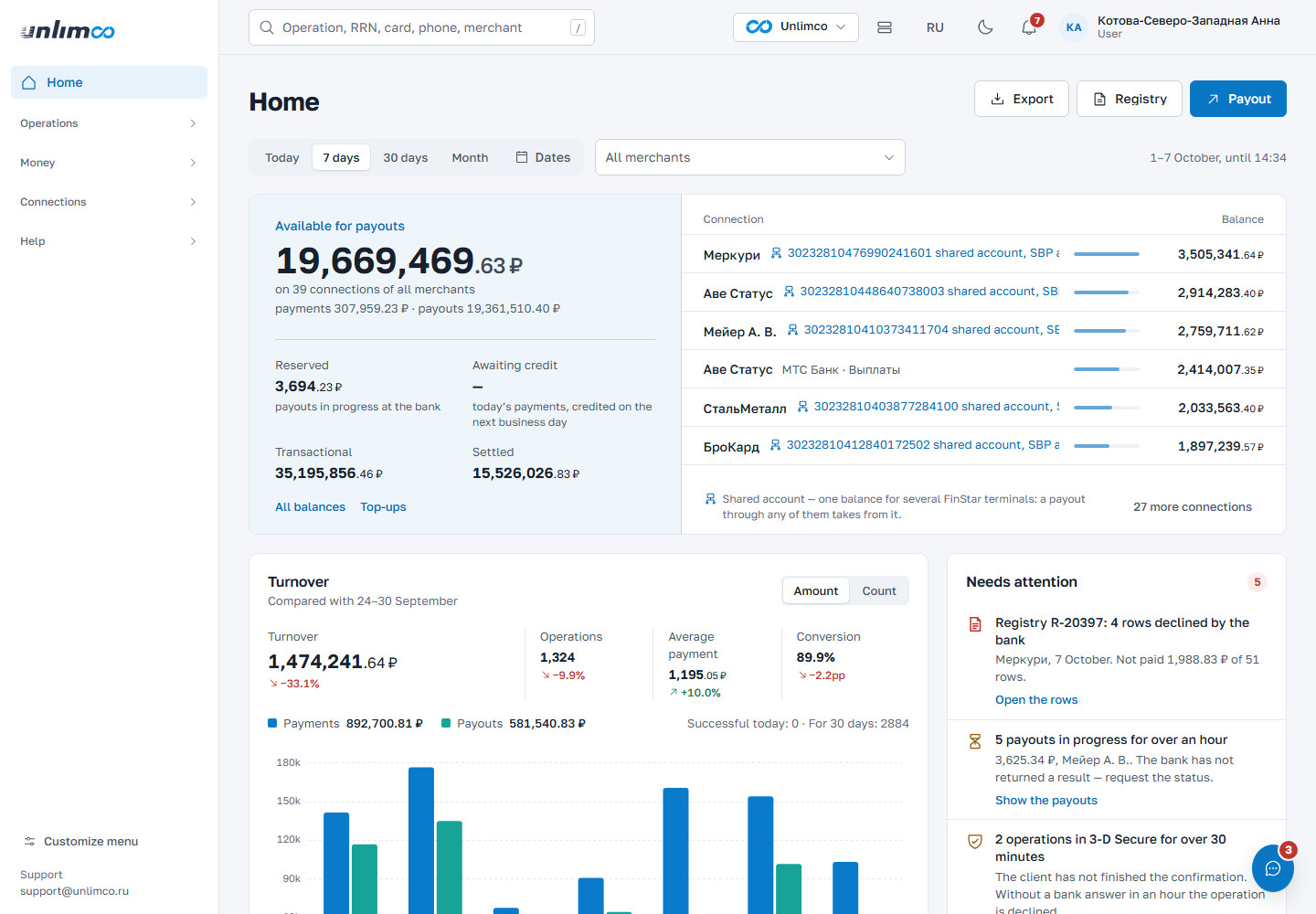
- Period: Today, 7 days, 30 days, Month or your own dates. All figures on the page are calculated for the selected period.
- Merchant list. All merchants is selected by default; you can keep one or several.
- Export: operations for the period in CSV, Excel or 1C format.
- Registry: upload a payout file.
- Payout: a one-time payout to a card or via SBP.
- Needs attention block: things that need to be dealt with.
The 1C file contains only successful operations, in Windows-1251 encoding. Which fields go into it is set in the export template (see Export and templates).
2.2 Balance
The large Available for payouts figure is the total across all connections of the selected merchants. Below it you can see how much was received and how much was paid out. If you have connections in different currencies (rubles, soms, dollars), figures are shown for each currency separately with the code RUB, KGS or USD: the dashboard never adds up amounts in different currencies.
There are a few more figures nearby. Reserved — payout money currently being processed by the bank. Awaiting credit — today’s incoming payments, credited on the next business day. Two more figures show what the balance consists of: Transactional (the amount of successful operations not yet settled to you) and Settled (how much has already been paid to you under settlements). For merchants that make payouts on request, Reserved balance is shown instead of Settled. On the right is the list of connections with the balance of each. The All balances and Top-ups links lead to the corresponding sections.
If several terminals share one account, their balance is the same and is counted in the total only once. A payout through any of them is debited from that shared balance.
2.3 Needs attention
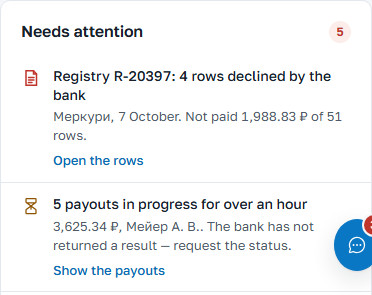
This block collects things that shouldn’t be left unattended: registries with declined rows, payouts stuck in processing for more than an hour, operations the client didn’t complete in 3-D Secure, low balances, a sharp rise in declines, callbacks that didn’t reach your server, and keys that are about to expire.
Each item has a link to the relevant section, for example Open the rows, Show the payouts or Check the address and retry. If the block is empty, there are no open issues.
2.4 Statuses, turnover, geography, latest operations
Further down is the turnover chart with an Amount / Count switch. It is compared with the same previous period.
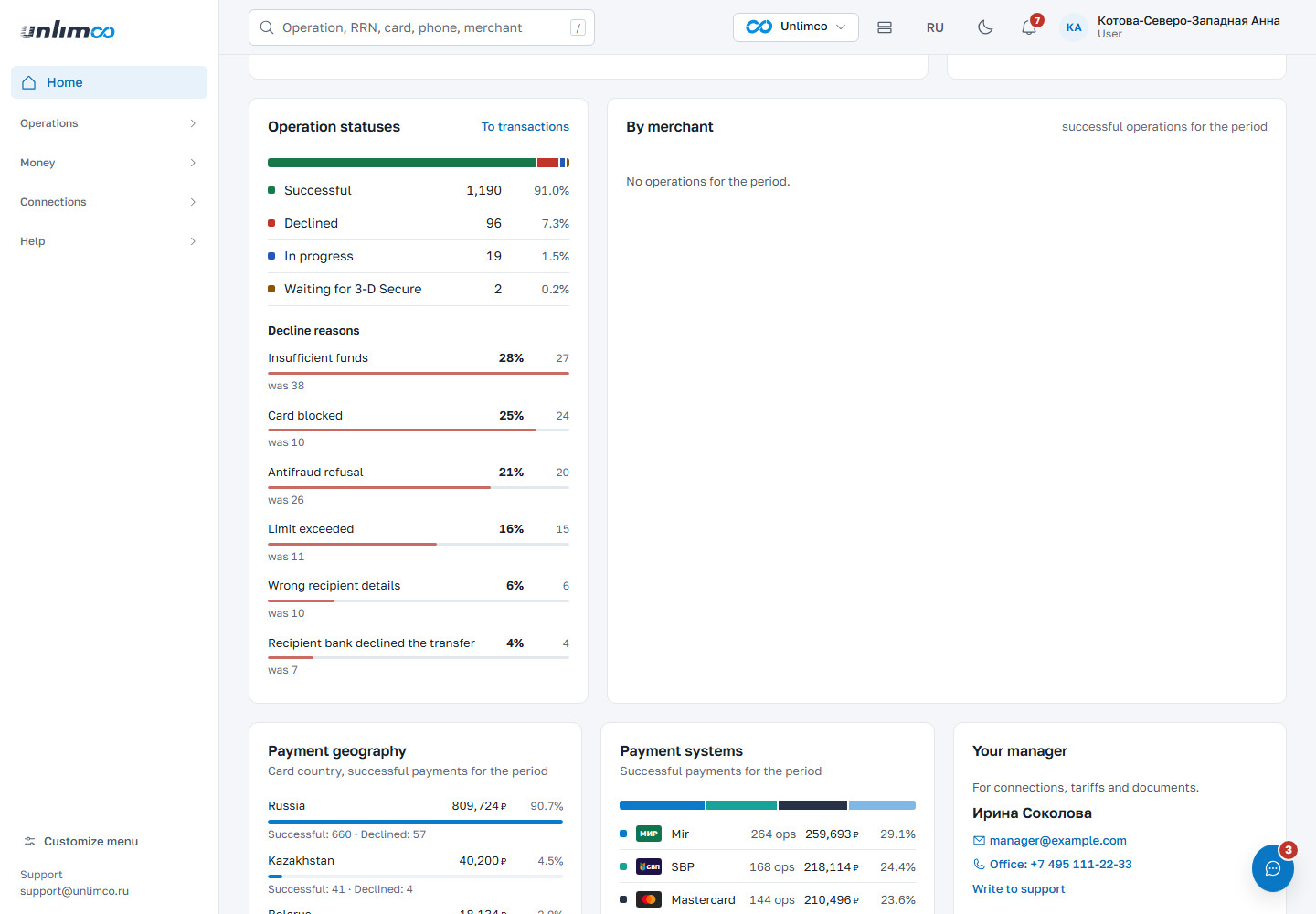
The Operation statuses block shows the share of successful, declined and in-progress operations, and the most common decline reasons. The Payment geography and Payment systems blocks show which countries cards come from and which payment systems are used: Visa, Mastercard, SBP and others.
The Your manager card contains your manager’s contact details. If a manager hasn’t been assigned yet, there is a button to contact support. At the bottom of the page is Recent operations with a link to the full list for the period.
3. Transactions
The Transactions section contains all operations on your connections: incoming payments and payouts. Operation cards are opened from here.
3.1 List and chart
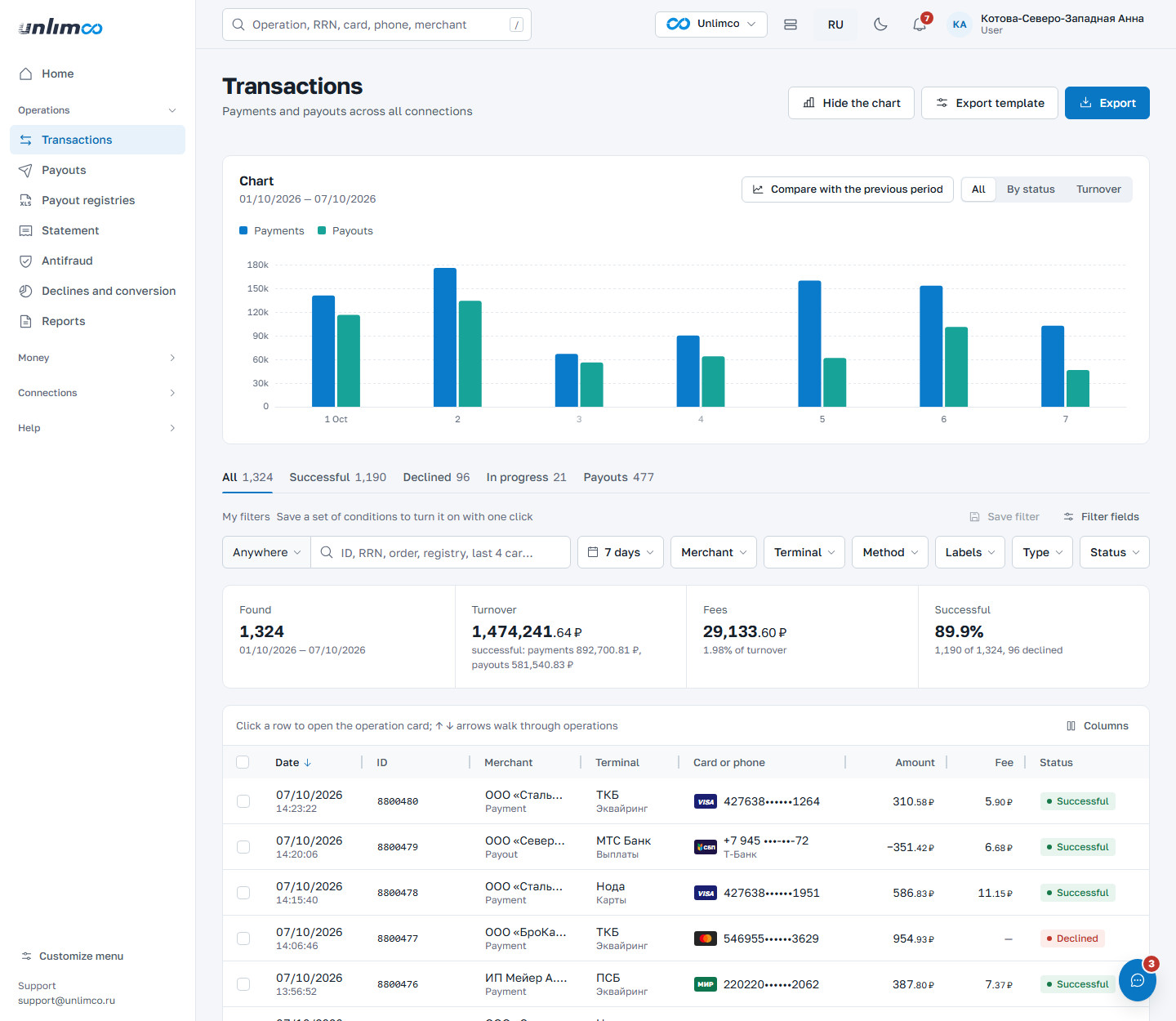
- Compare with the previous period: the previous period’s line appears on the chart, and the totals show the percentage of growth or decline.
- Preset views: All, Successful, Declined, In progress, Payouts.
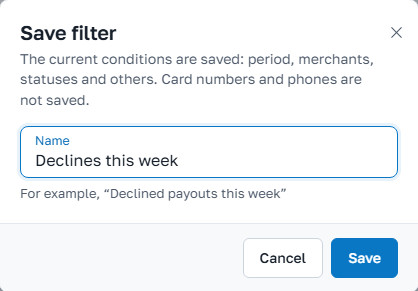
- Save filter: save the current set of conditions under a name.
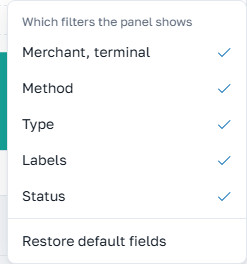
- Filter fields: choose which fields to filter by.
- Search field selector. Everywhere searches all at once: ID, RRN, order, registry, card and amount. You can also pick a single field: card number, phone, cardholder, description.
- Export template: which columns go into the file.
- Export: save the list for the current filter to a file.
- Columns: show or hide table columns.
Each table row is one operation. Click it and the operation card opens on the right. The up and down arrow keys move between operations without closing the card.
Above the table is a summary line for the current filter: how many operations were found, turnover, fees and the share of successful operations. These figures cover all operations found, not just the visible page. If the list contains operations in different currencies, totals are shown separately for each currency; amounts in different currencies are not added up. Amounts in the table and on the card always include a currency code.
3.2 Filters
Above the table is a row of filters: period, merchant, terminal, method, labels, type and status. The More button opens the rest: amount equal to, greater than or less than (or from–to), and “registry payouts only”. Applied conditions appear as separate chips; any of them can be removed with the cross. Reset filters removes them all.
How search works:
| What you are looking for | How to enter it |
|---|---|
| Transaction ID and RRN | In full. An RRN is 12 digits, including leading zeros. |
| Card | The full number, or the first 6 and last 4 digits, or only the last 4. The card number is never added to the page address. |
| Amount | For example, 12,450 or 12,450.00. For a range, set the
“greater than” and “less than” conditions. |
| Phone and cardholder | The full phone number. The holder’s name as it appears on the card. |
| Merchant order | The order number as you pass it in the request. |
You can set several conditions at once. Enter the first condition and press Enter: it moves to the area above the table, and the search bar is free for the next one. An operation must match all conditions. Any chip can be removed with its cross. For example, the field “Card” plus the amount “12,450” finds the payment with that card for that amount.
A set of conditions you use often can be saved. Choose a view and filters, click Save filter and give it a name. Saved sets appear next to the button and are turned on with one click.
3.3 Export and templates
The Export button saves the operations for the current filter. Formats: CSV (for spreadsheets and scripts), Excel, and a 1C file. Only successful operations go into the 1C file.
Which columns appear in Excel and CSV, and in what order, is set by the template. Open Export template and create a new template or copy an existing one. Add columns with the Columns button and change their order by dragging. One template can be set as the default. For the 1C file, you choose separately which fields to fill: document number, date, amount, payer and recipient TIN, purpose, RRN, fee. The file format itself is fixed.
3.4 Labels and bulk actions
A label is your own mark on an operation: “Check”, “Accounting” or anything else. Labels are visible only to you and your project colleagues; Unlimco staff don’t see them. You choose the label colour when you create it.
To label several operations at once or resend their notifications, tick them in the checkboxes on the left. A panel appears at the bottom showing how many are selected and their total.
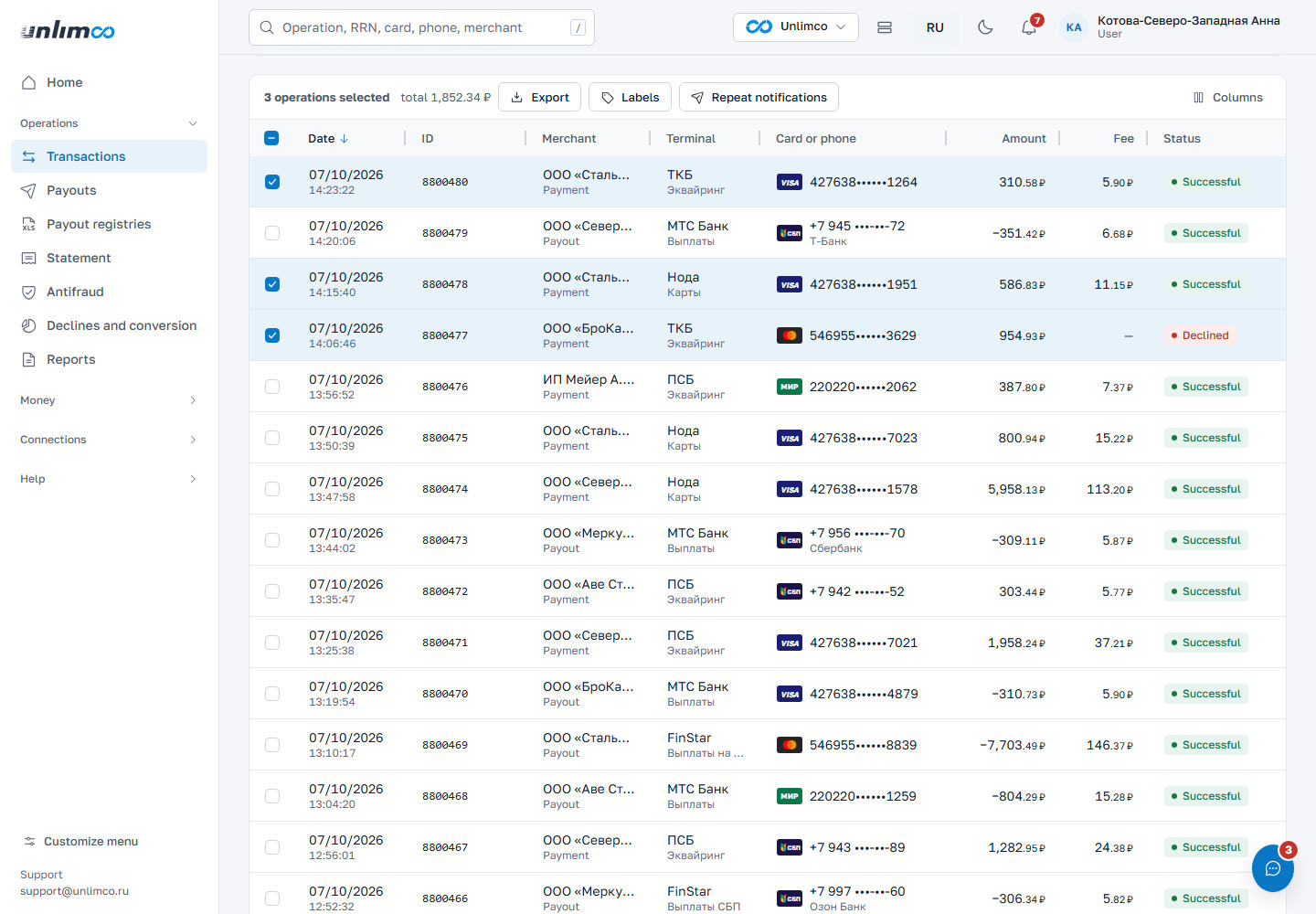
- Labels: add or remove a label on all selected operations.
- Resend notifications: send callbacks for the selected operations to your server again.
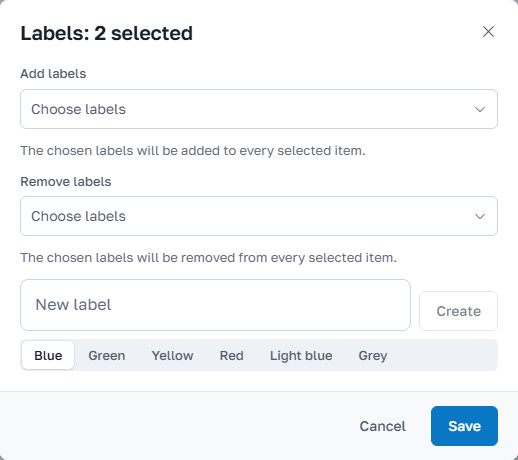
Resent notifications go to the address in the connection settings. Operations still in progress have no result yet, so no notification is sent for them. The dashboard shows how many notifications were sent and how many were skipped.
3.5 Operation card
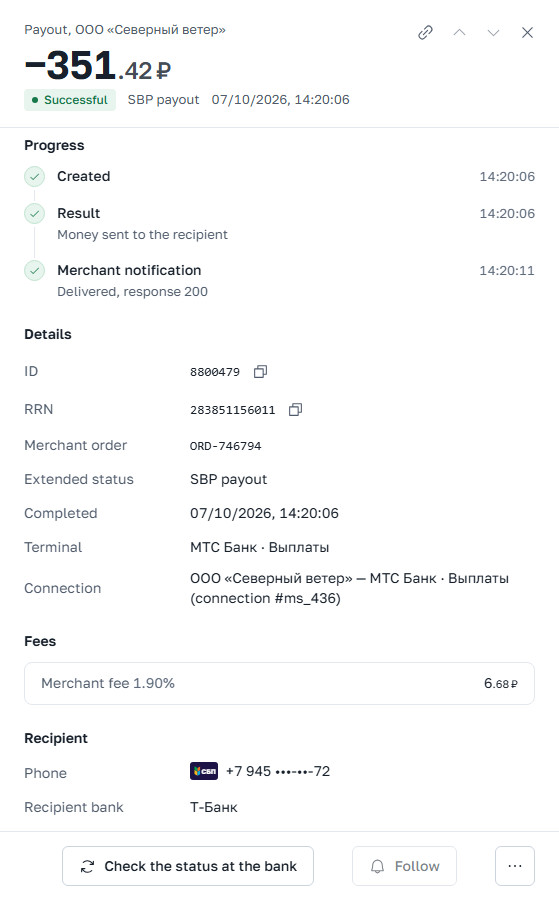
- Link for a colleague: copies the operation’s address. It opens only for people with access to this merchant.
- Up and down arrows: previous and next operation in the list.
- Status and date. A green Successful chip means the result has been received.
- Check status at the bank: we ask the bank what is happening with the operation.
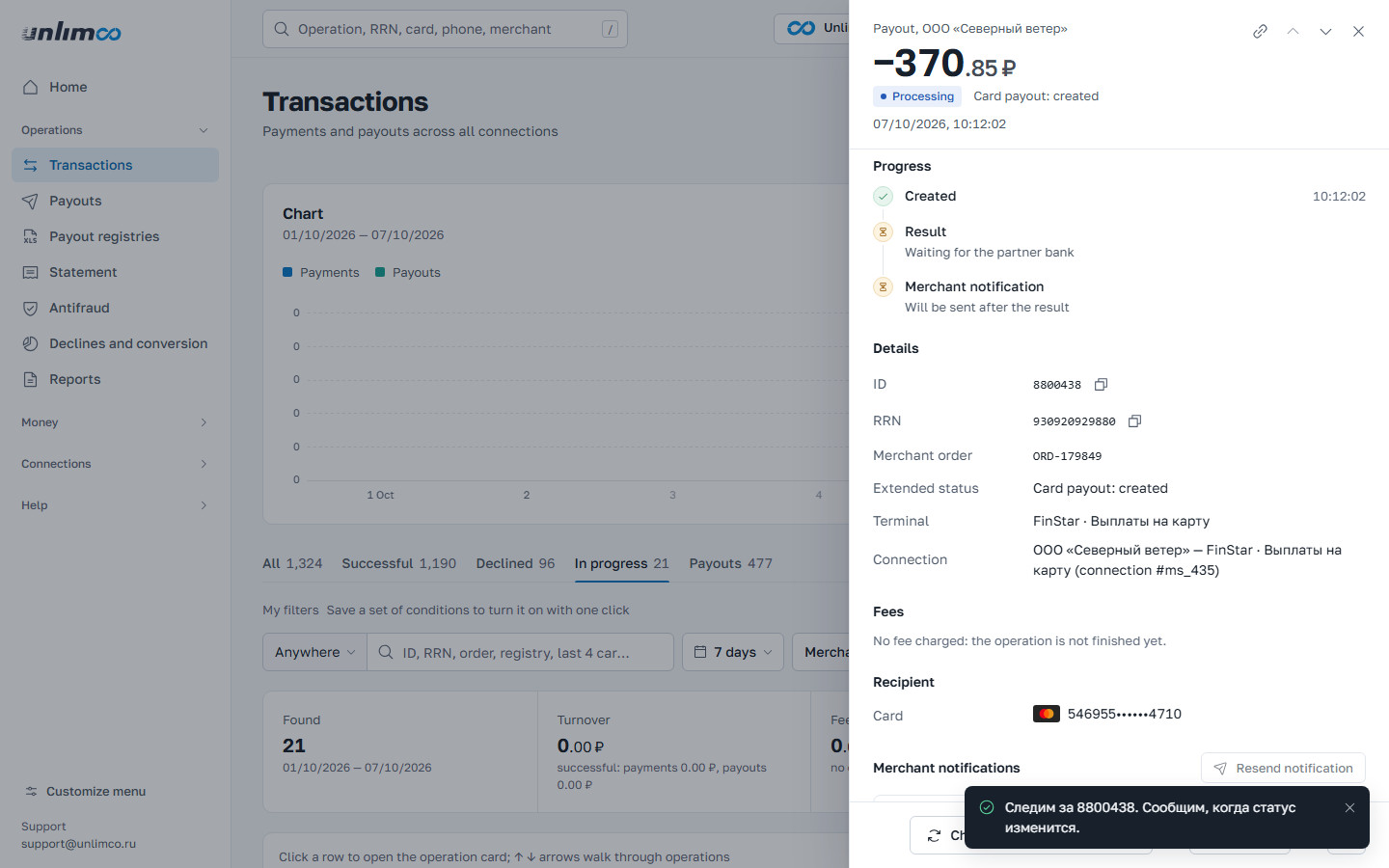
- Track: we notify you when the status changes.
- More menu: receipt for the payer and other actions.
At the top are the amount, status, type and date. Below is the Operation progress block: five steps showing where the operation is now. The operation is created, checked by antifraud, sent to the bank, the result is received, and a notification is sent to your server. If something went wrong, the step is highlighted and the reason is shown next to it.
Further down are the Details: ID, RRN, bank ID, order number, terminal and connection; a payout also shows the recipient and the bank. The ID and RRN have a copy icon next to them.
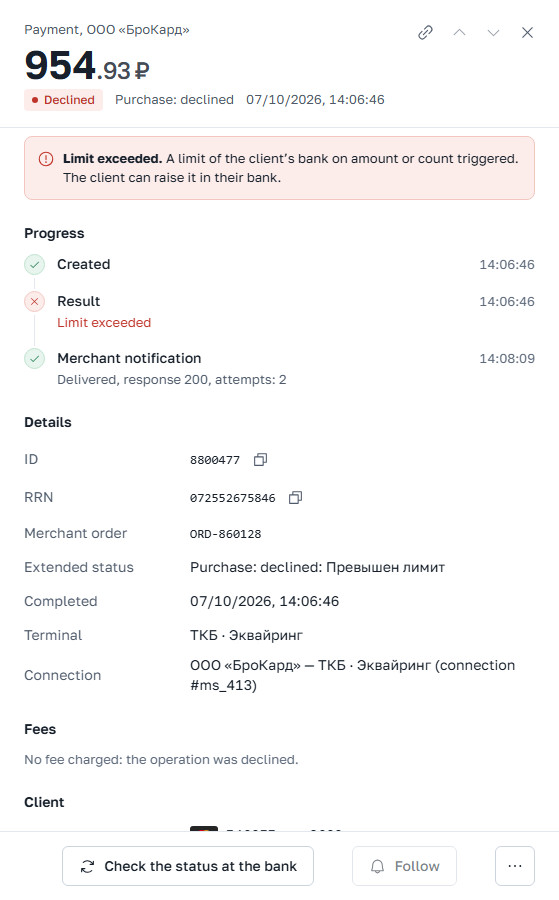
For a declined operation, the card explains under the reason what it means and whether the operation can be retried. For example, “Insufficient funds” means the client doesn’t have enough money on the card and can pay with another card. “Antifraud decline” means the operation was stopped by our checks and never reached the bank.
3.6 Operation path tab
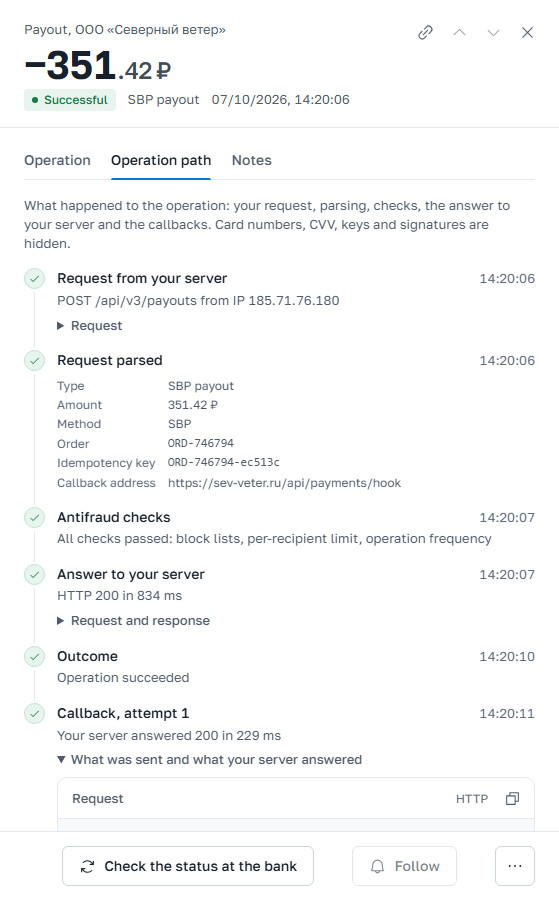
If the operation was created by your server via the API, the Operation path tab shows everything that happened to it: your server’s request, parsing, antifraud checks, the response to your server, client confirmation in 3-D Secure, the result and the callbacks. Card numbers, CVVs, keys and signatures are masked.
Each callback is shown as a separate line: the attempt, your server’s response and the response time. Expand What was sent and what your server replied to see the request and response bodies. If the automatic attempts are over and your server still hasn’t accepted the callback, resend it manually. One operation can be resent up to 5 times per hour.
3.7 Notes, tracking, receipt, payment cancellation
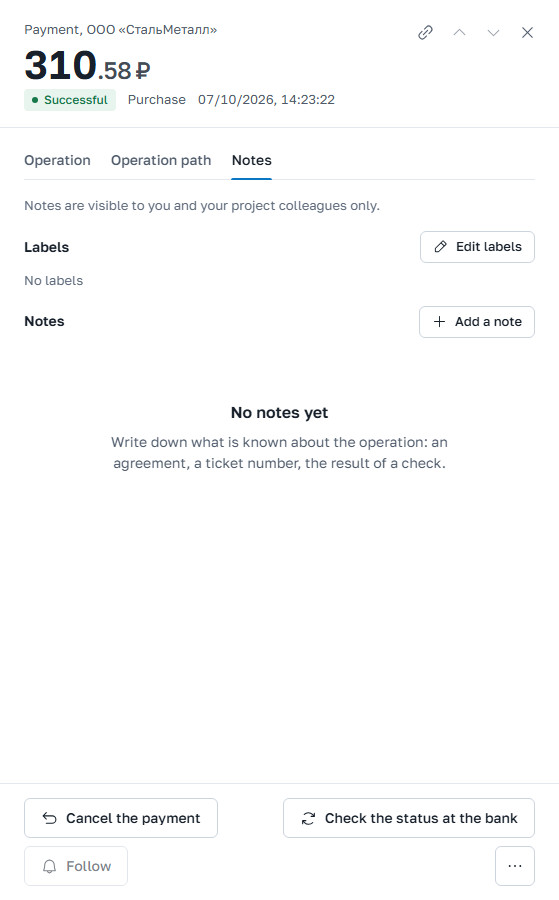
Notes. Use this tab to record what you know about the operation: an agreement, a request number, a check result. Notes are visible only to you and your project colleagues.
Track. Click it if the operation is in progress and you are waiting for the result. You’ll be notified when the status changes. A completed operation’s status won’t change, so the button is inactive there. Tracked operations are marked in the list.
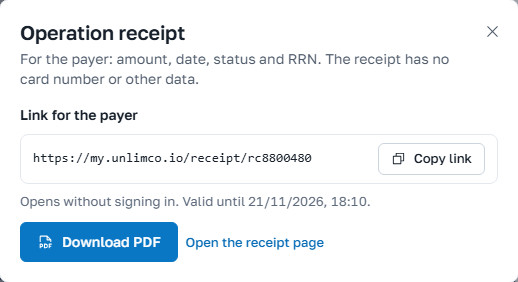
The receipt for the payer is in the More menu. It is a page with the amount, date, status and RRN, without the card number or other data. You can share the link: it opens without signing in to the dashboard and works for a limited time. The receipt can be downloaded as a PDF.
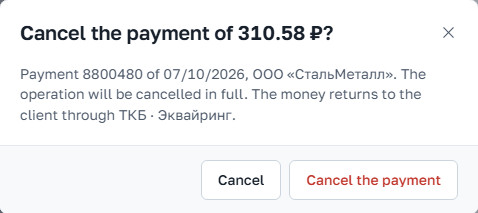
Cancel payment is available for a successful payment if you have permission to cancel operations for this merchant. The full amount is always cancelled: partial cancellations are not possible. Click the button, check the payment amount and date in the window, and confirm the cancellation with the button in the window. The money is returned to the client through the bank, and the amount is debited from the connection balance. The merchant fee is not refunded. For a payment that is already cancelled, a declined payment or an operation in progress, the button is inactive, and the reason is shown next to it.
If a client has a complaint about an operation, write to support and include the operation number. A Unlimco specialist will look into it using the bank’s records.
4. Payouts
This section is for sending money to recipients: to a card, or by phone number via SBP. It requires the “Payouts” permission. If the section isn’t in your menu, ask the merchant administrator to grant the permission.
4.1 List of payouts
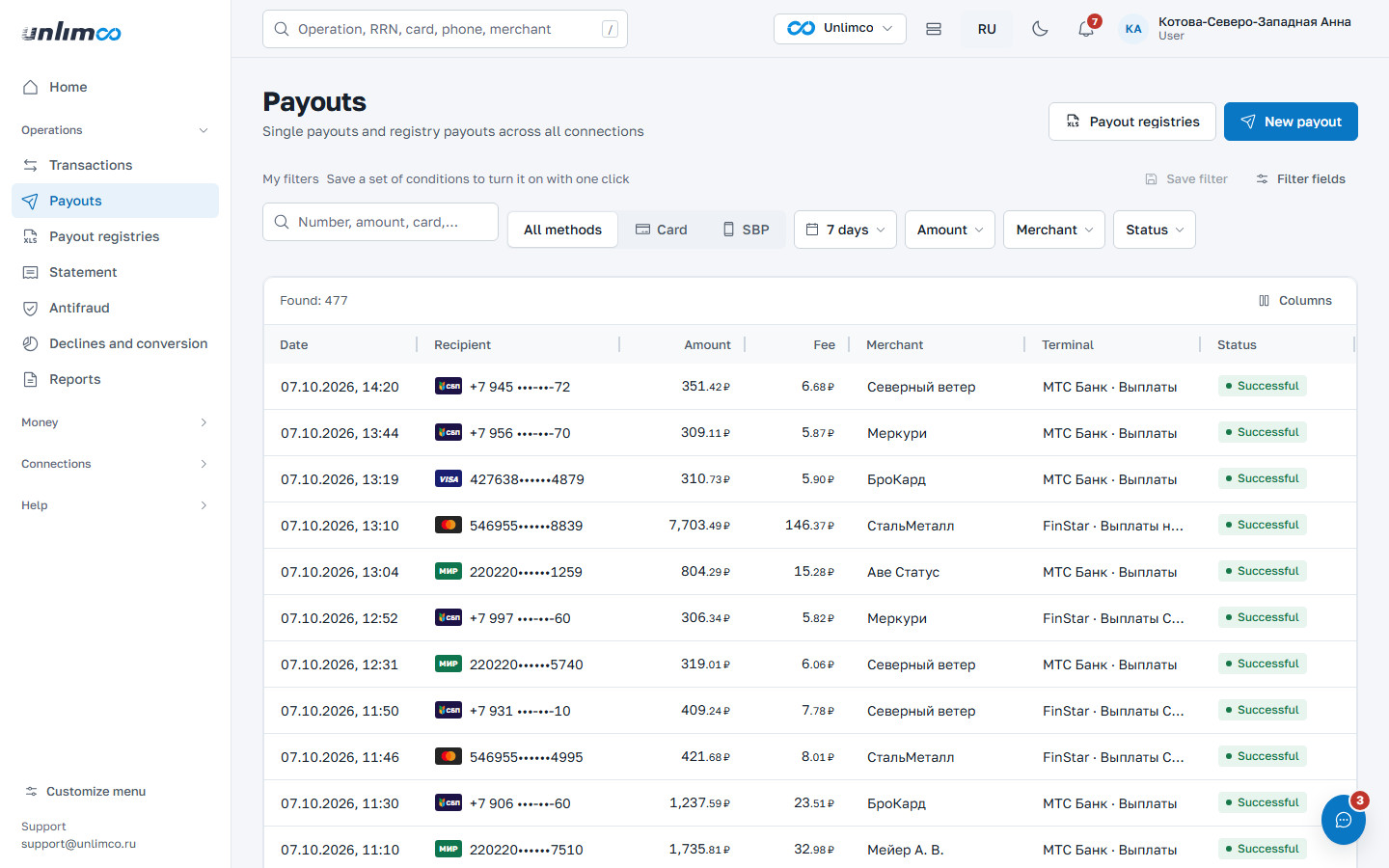
- New payout: opens the one-time payout form.
- Payout registries: go to payout files.
- Method filter: All methods, Card or SBP.
The list includes both one-time payouts and payouts from registries. Above the table is the smart search bar (amount, range, card, phone, number) and filters by period, amount, merchant and status. Clicking a row opens the card: recipient, amount, fee, status, RRN and decline reason, if any. Registry payouts have a link to their registry.
4.2 Payout to a card
Click New payout. The money goes to the bank immediately after you confirm in the window, so check the details before sending.
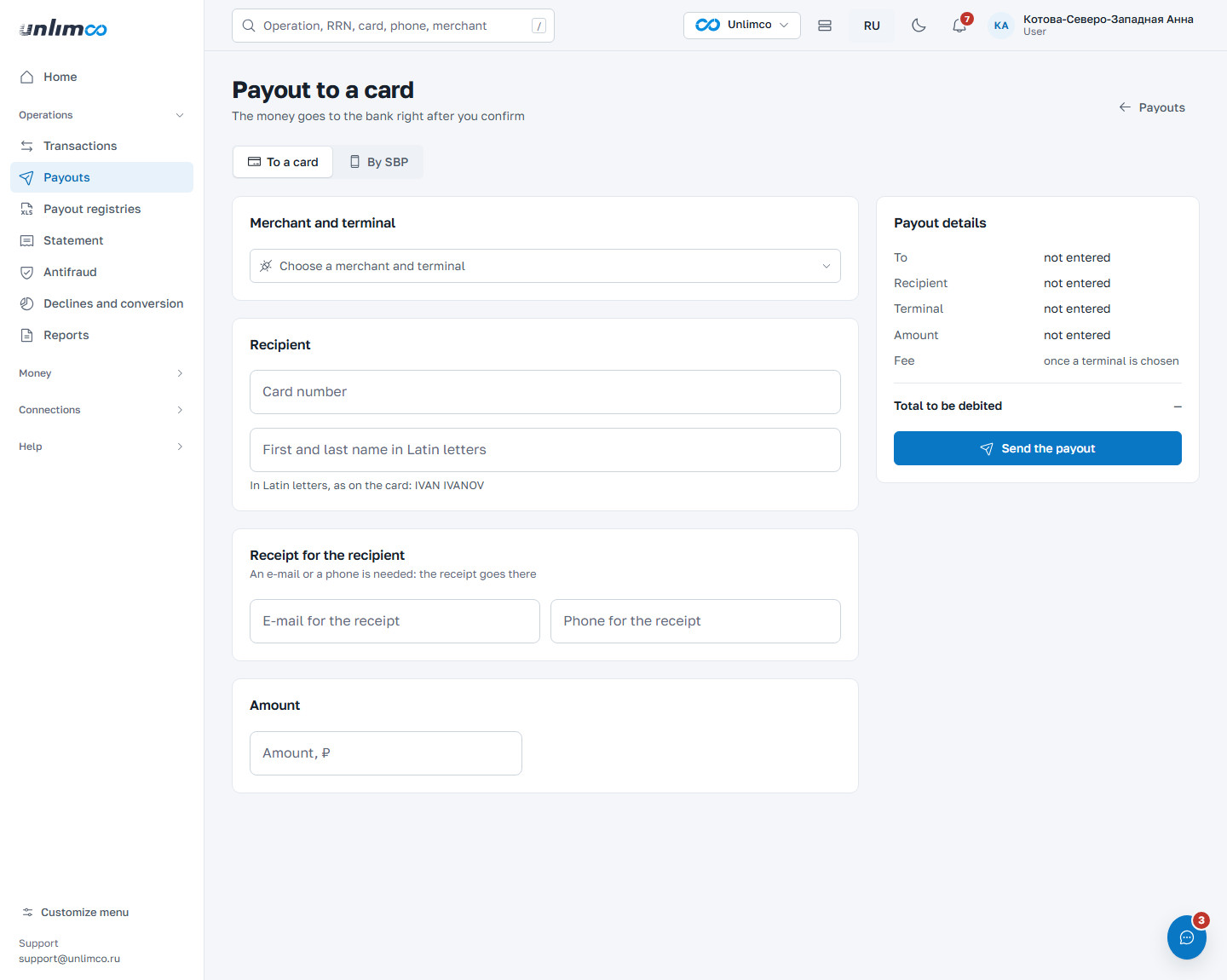
Form fields:
| Field | What to enter |
|---|---|
| Merchant and terminal | The connection the payout goes through. The list contains only those that support card payouts. |
| Card number | 13–19 digits. The form verifies the check digit and flags a typo immediately. |
| Recipient’s name | Depending on the partner bank, the name is required either in Cyrillic, as in the passport, or in Latin letters, as on the card. The hint under the field tells you which. |
| Receipt for the recipient | An email or a phone number is required: the receipt is sent there. |
| Amount | In rubles, with kopecks after the decimal separator. |
If the bank needs additional data, a Data for the partner bank block appears below. Some of its fields are optional; they are marked as such.
The fee and the total amount to be debited are shown on the right. If the balance is not enough, the form shows exactly how much is missing. After you click Send the payout, the Check the payout window opens. Confirm the payout with the button in the window.
A sent payout cannot be cancelled. Check the card number and amount in the confirmation window.
4.3 Payout via SBP
Switch to the By SBP tab. Instead of a card number, enter the recipient’s phone
number: +7 and 10 digits. The recipient’s bank is selected from the SBP directory: start typing
the bank name, BIC or bank ID. If the bank isn’t in the list, click Enter BIC
manually, for example 044525225.
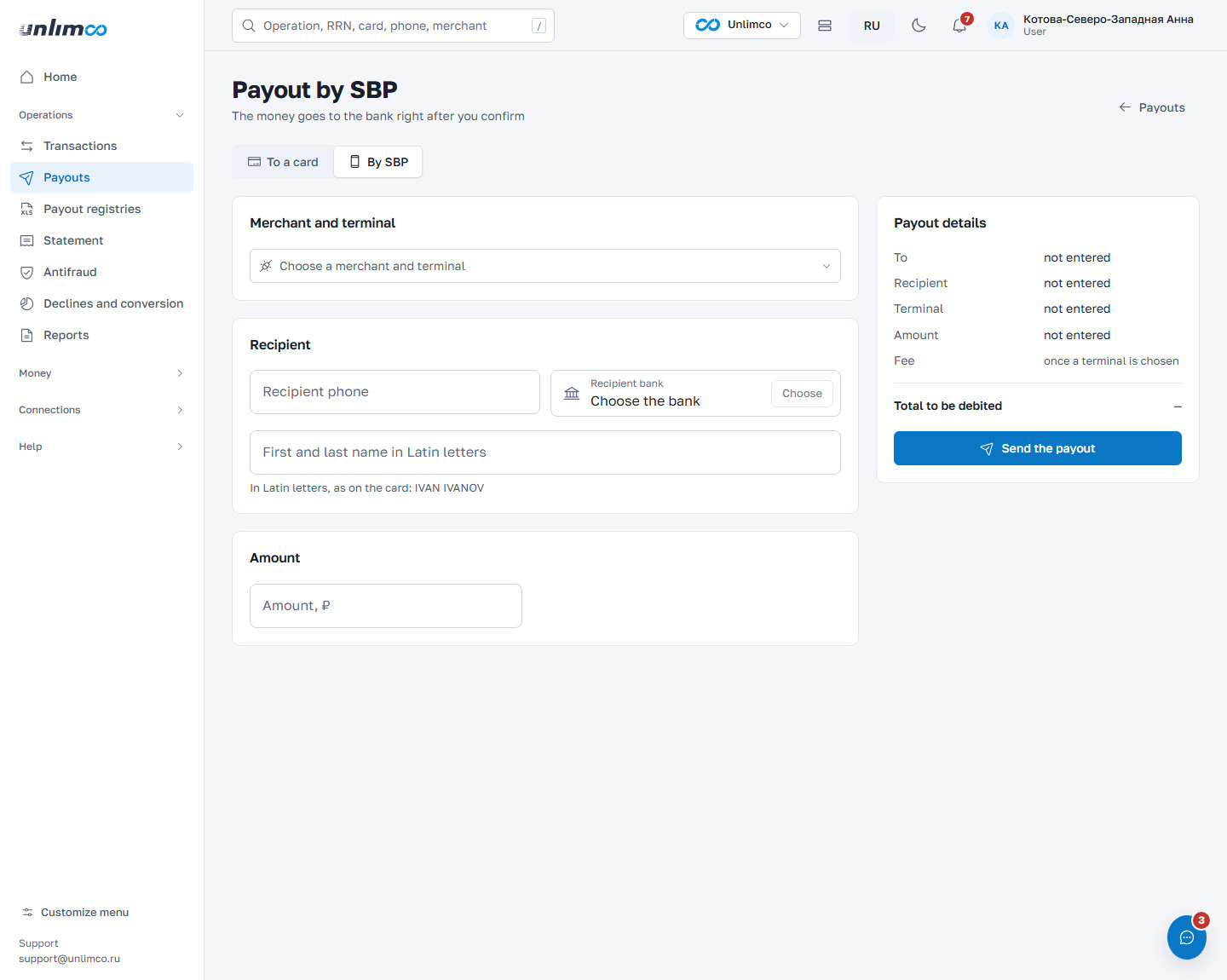
The rest is the same: amount, receipt for the recipient, review and confirmation in the window.
4.4 What happens after sending
The payout appears in the list. It is processed first, then gets a result: successful or declined. While the payout is in progress, the money is reserved and not available for new payouts. If the bank declines the payout, the money returns to the connection balance, and the reason is shown on the card.
A payout that stays in progress for more than an hour appears in the Needs attention block on the home page. Open it and click Check status at the bank.
The bank sometimes takes a long time to respond: the dashboard waits up to three minutes. If there is no answer within that time, the form reports that the payout status is unknown and blocks a new submission until you check the transactions list and mark Checked, no payout. This prevents paying twice. First find the payout in the list, and only if it isn’t there, tick the box and send again. Registry uploads work the same way.
5. Payout registries
A registry is an Excel or CSV file with a list of payouts. It is a convenient way to pay many recipients at once: salaries, rewards, partner payouts.
5.1 List of registries
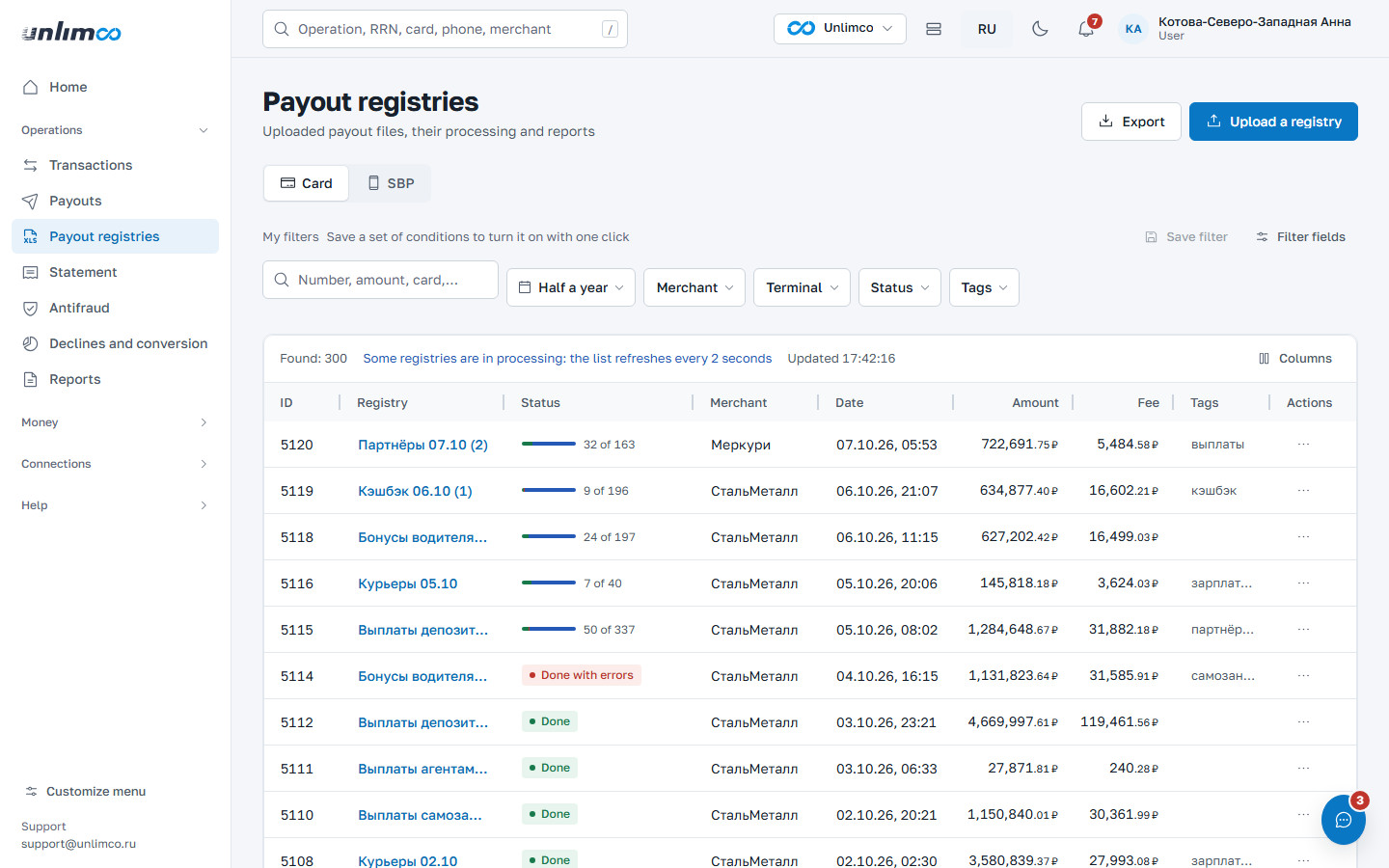
- Upload a registry: the new file upload wizard.
- Method switch: registries to a card or via SBP.
- Registry Actions menu.
The Export button saves the list of registries to a file. Above the table is the smart search bar (amount, number, card) and filters by period, merchant, terminal, status and tags. The table shows the registry, its status (a registry in progress shows a bar like “33 of 163” instead of a label), merchant, date, amount, fee and tags. Statuses: Created, Processing, Done, Done with errors, Pending. While some registries are being processed, the list refreshes every two seconds.
The actions menu contains: Open, Reprocess (unpaid rows are sent to the bank again), Registry report, Download the source file and Retry failed rows.
5.2 Uploading a registry
The wizard has four steps: Merchant and terminal, File, Check and Sending.
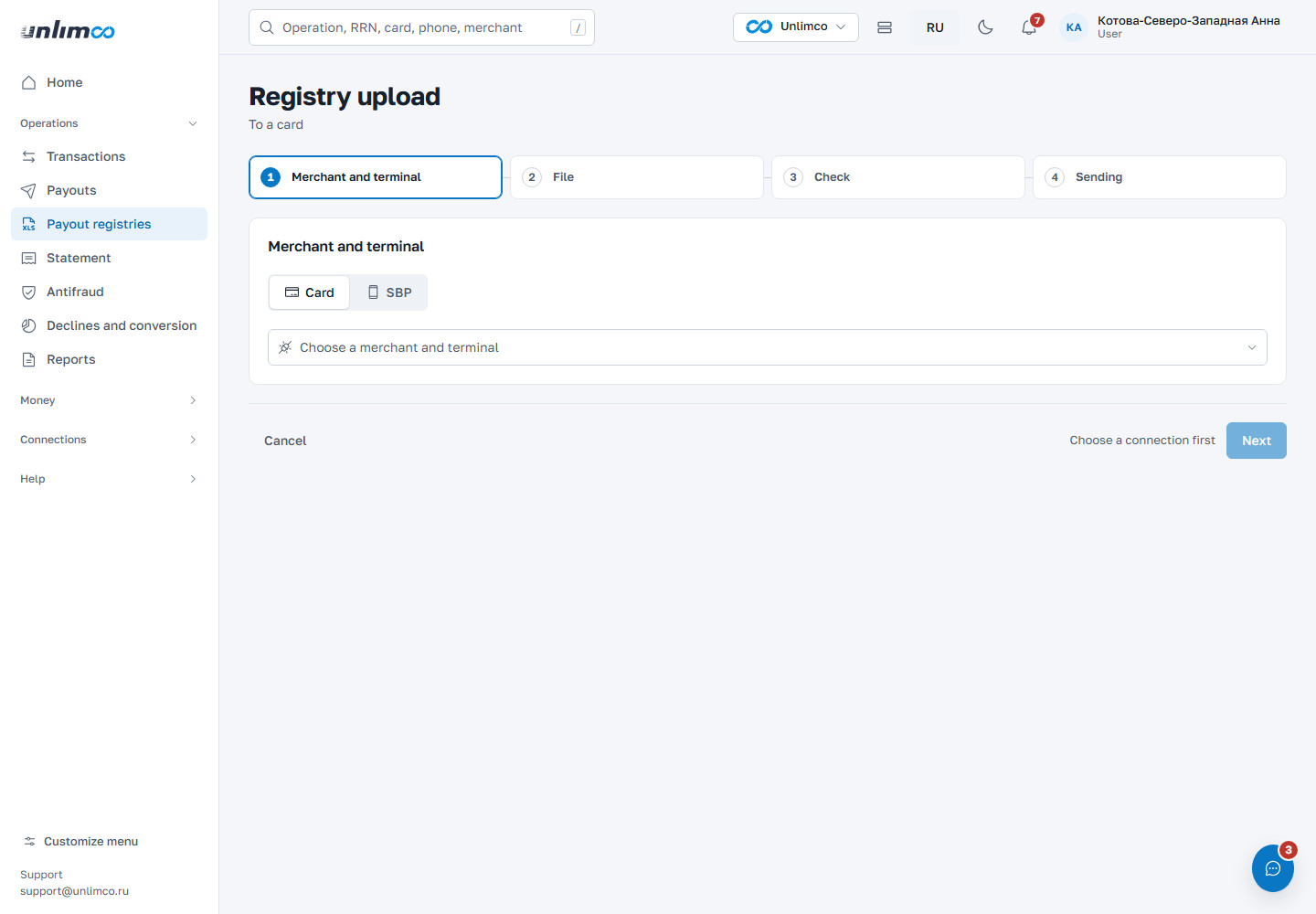
- Select the method (Card or SBP) and the connection. Next to it you can see the connection balance, the amount available for payouts and the tariff.
- Upload the file: drag it into the window or select it on your computer. Formats: XLSX, XLS or CSV. A sample is available with the Download sample button. For a card the columns are: card number, recipient, amount. For SBP: phone number, BIC or bank ID, recipient, amount. The exact set of columns for your partner bank is shown on the page.
- Check the result. The wizard shows the number of rows, errors, possible duplicates and the total amount. Rows with errors must be fixed in the file, and the file uploaded again.
- Give the registry a name, add labels if you like, and click Submit registry. Check the amount in the confirmation window.
Duplicates. If a registry with the same name or content was uploaded in the last 30 days, the wizard warns you. Submitting the same registry twice may result in a double payout.
Sent payouts cannot be cancelled. A registry with errors in the file won’t pass the check, but you can fix it and upload it again.
5.3 Registry page
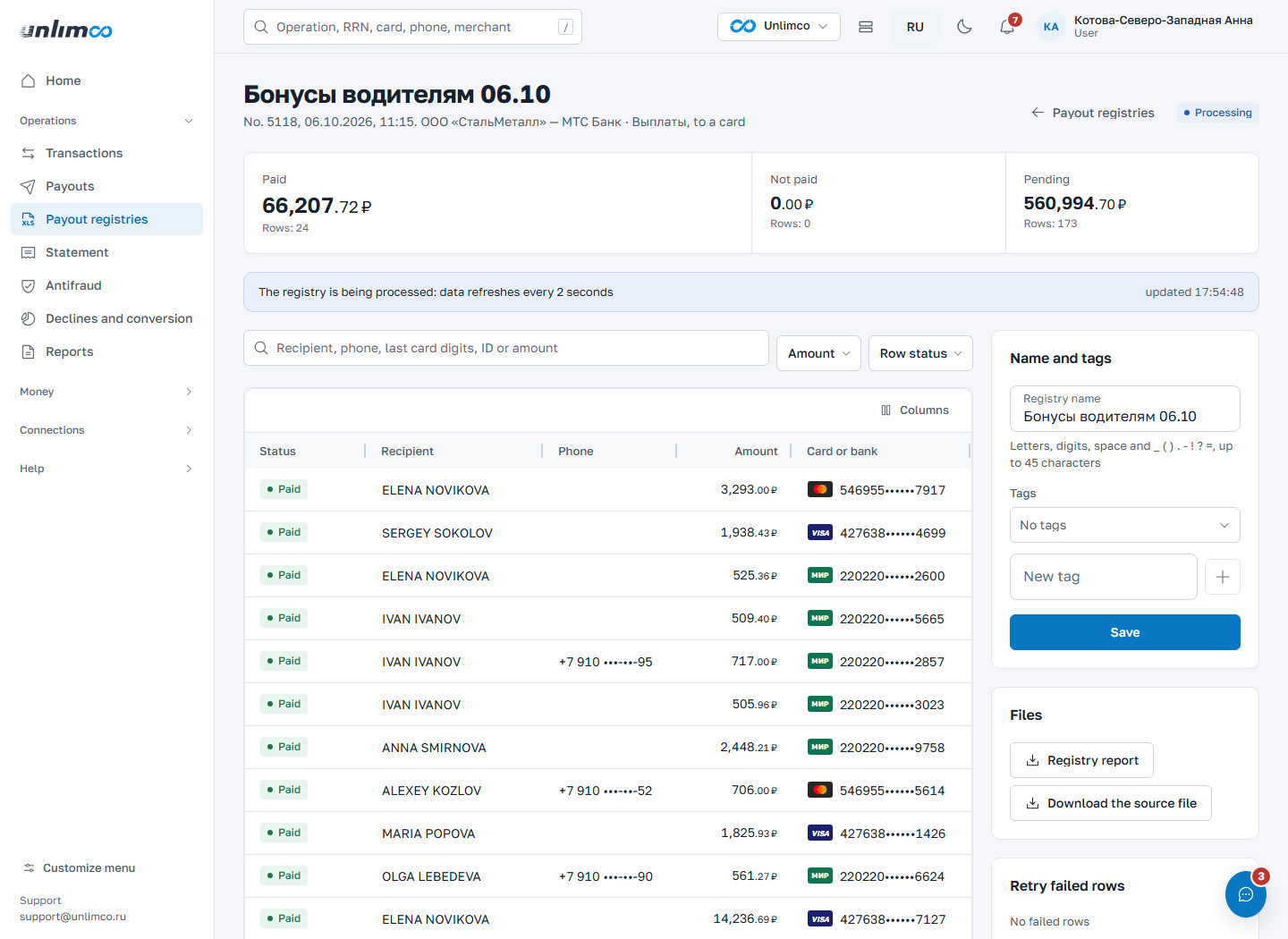
At the top are the totals: how much has been paid, what hasn’t been paid, and what is pending. Below are the registry rows with recipient, phone, amount, card or bank, and status. Row statuses: Paid, Error, Pending, Filtered. Rows can be searched (recipient, phone, last digits of the card, ID, amount) and filtered by status. A row opens into a card with the decline reason.
The Name and tags button renames the registry and adds labels. The Files section contains the source file and the report.
The Retry failed rows block lets you send the rows with errors again as a separate registry. Before sending, the system checks the balance and duplicates. If a failed row matches a row the bank is still processing, a retry could pay the money twice, and the wizard warns you about this.
6. Money: balances, statement, cards, metal
Here you can see how much money you have on each connection and where it came from.
6.1 Balances
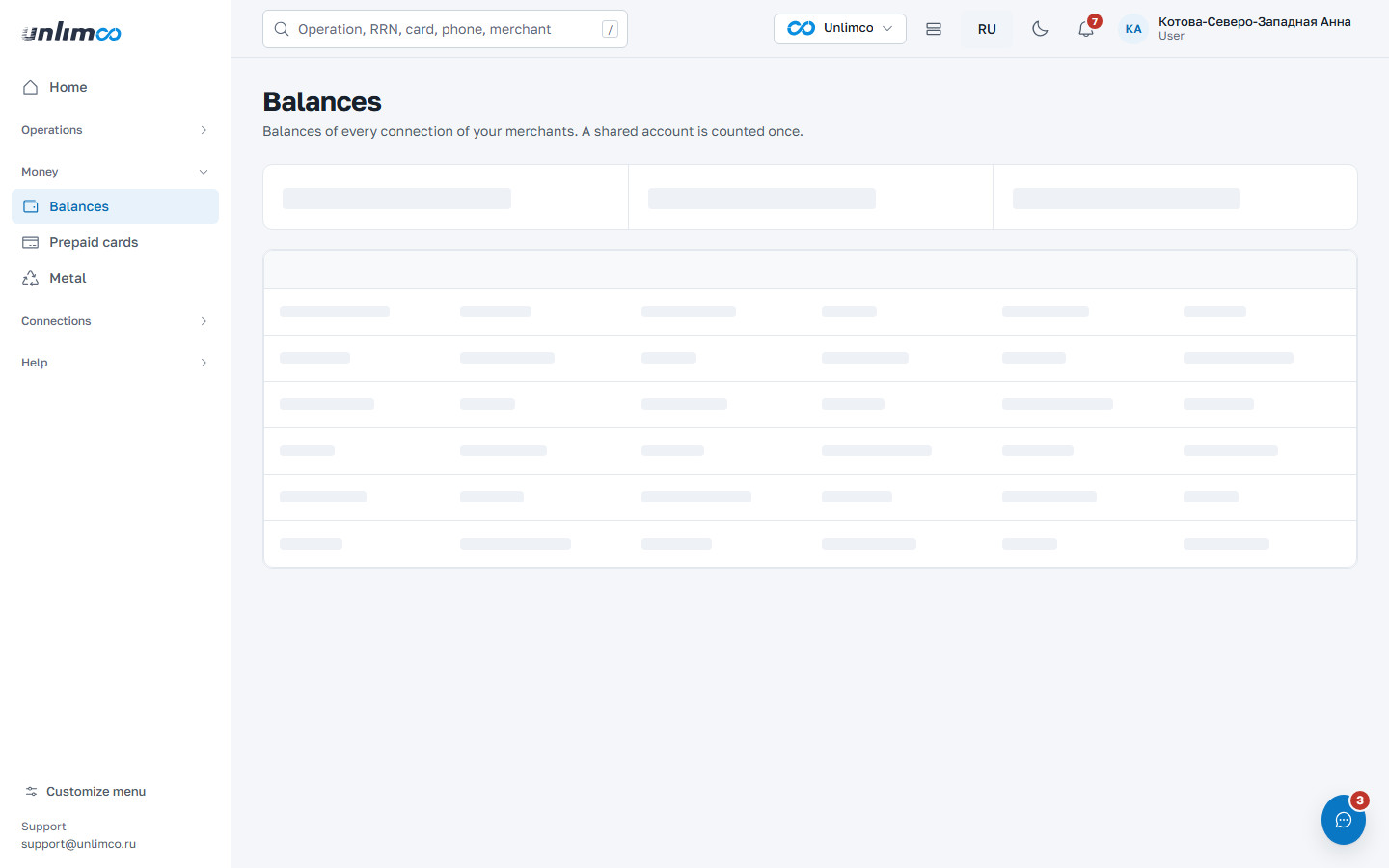
Balances of all connections of your merchants. There are four figures at the top: Available (how much can be paid out now — the main figure), Transactional (successful operations not yet settled to you), Settled (how much has already been paid to you under settlements) and Reserved (payouts currently at the bank). Hover over the i icon next to the title to read the explanation. A shared account used by several terminals is counted once. If connections are in different currencies, figures are shown for each currency separately; amounts in different currencies are not added up.
Below is the table: merchant, terminal, transactional balance, settled, available balance and the Actions menu (connection statement and new payout). The shared account mark means one balance for several terminals. Use the filter above the table to select a merchant.
6.2 Statement
The statement shows money movements on a connection: credits, fees, payouts and top-ups. Select the connection and period and, if needed, the operation type.
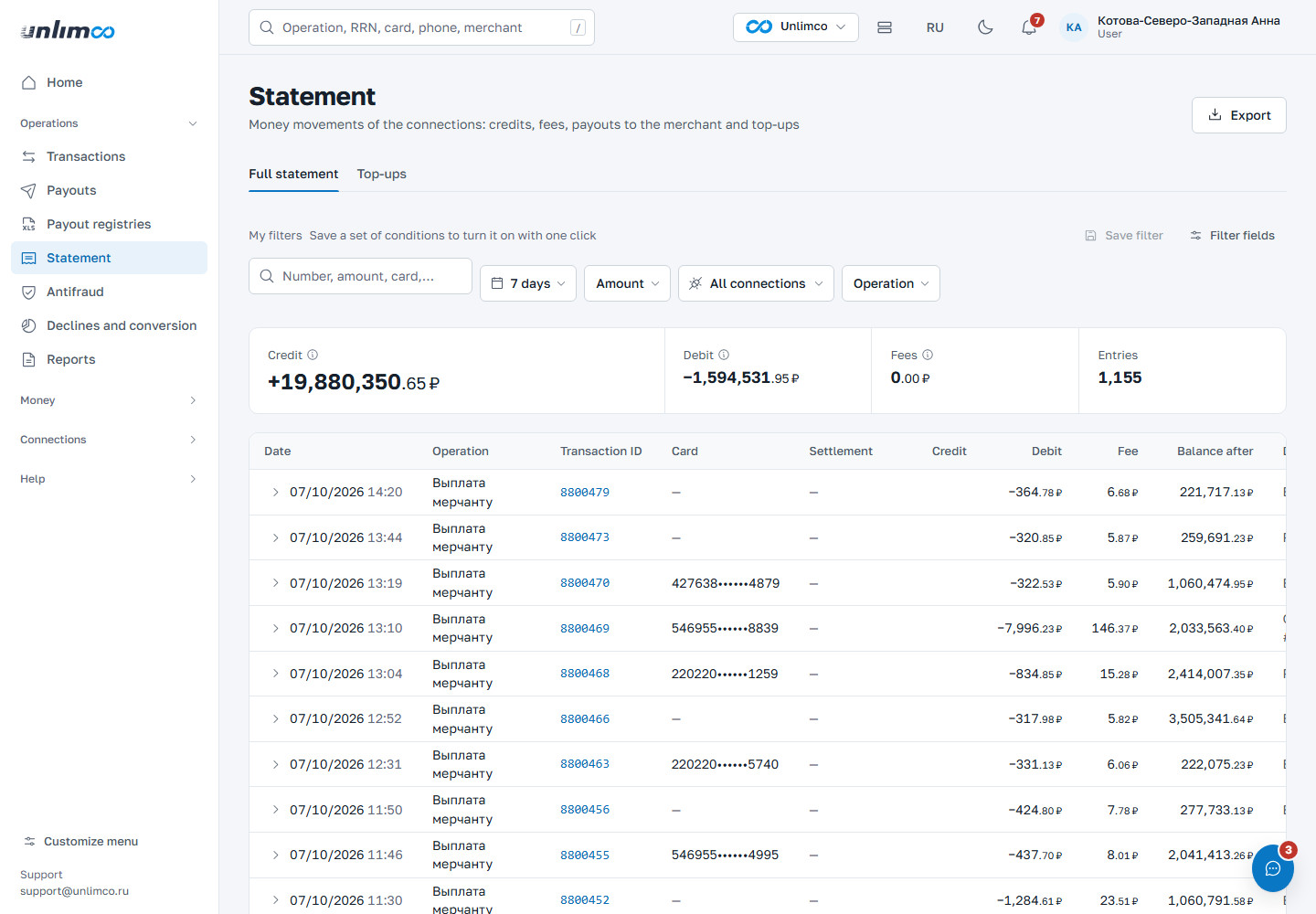
- Full statement: all entries.
- Top-ups: only top-ups and settlement payments.
- Show fee: expands the row and shows how the operation amount turned into the credited amount.
- Export: saves the entries for the current filter to a file.
Above the table are three totals: Credit (credits minus fees), Debit (payments to the merchant, write-offs) and Fees. They cover the whole period, not just the visible page. If connections in different currencies are selected, totals are shown for each currency separately.
The search bar above the table works the same as in other lists: amount, from–to range, transaction number, card. See Smart search in lists.
The full statement requires the “Statement” permission. Without it, only the Top-ups tab is available. Ask the merchant administrator to grant the permission.
6.3 Prepaid cards
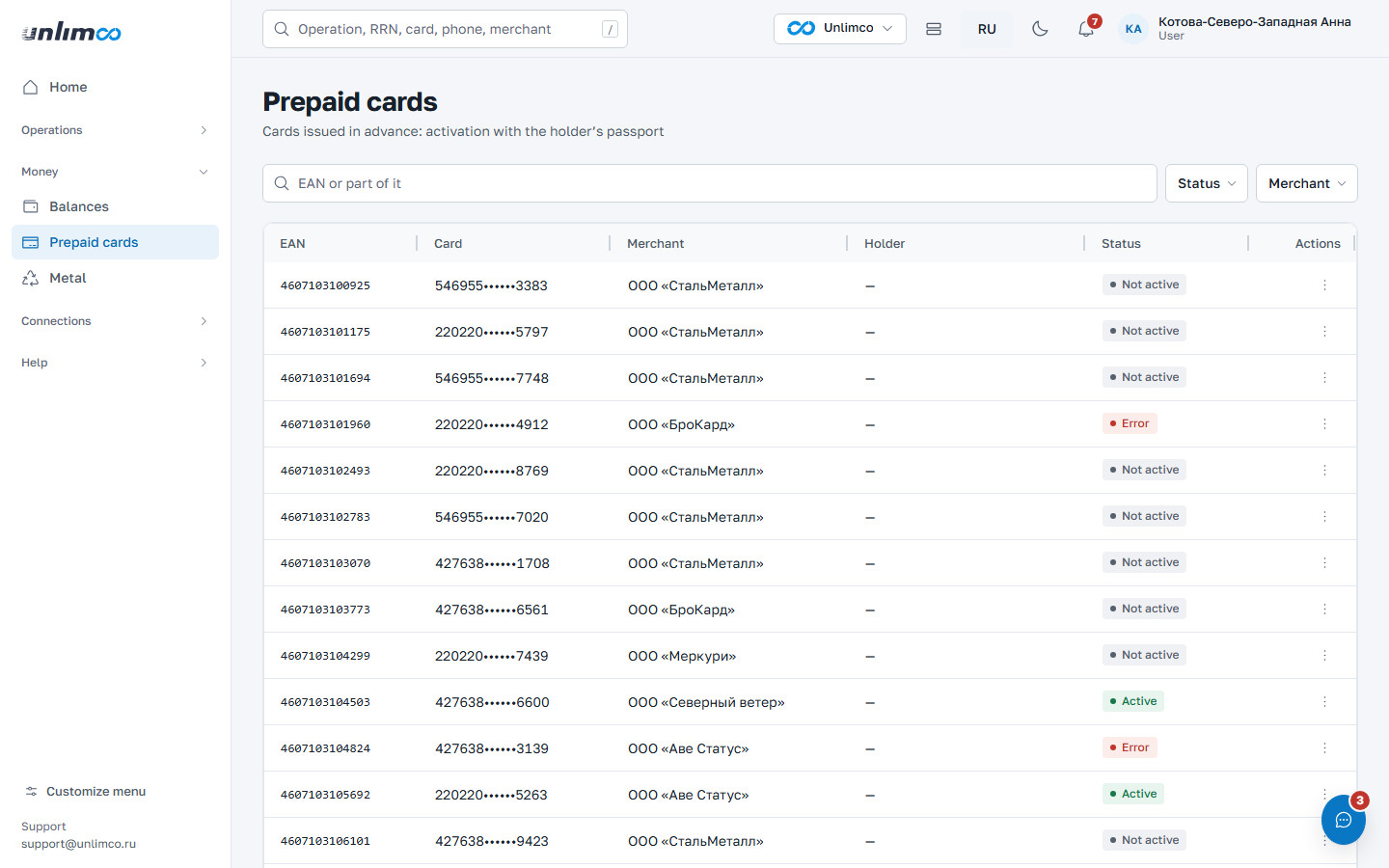
A section for cards issued by the bank in advance. A card starts working after activation with the holder’s passport. The list shows the EAN, card, merchant, client and status: Not active, Processing, Active, Error. You can search by the EAN or part of it.
To activate a card, open its actions menu and click Activate. The form asks for passport details, personal data, a code word (in Latin letters; the bank asks for it when the holder calls) and contact details. After submission, the bank verifies the passport; while the check is in progress, the data can’t be changed. If the bank rejects the activation, the data from the previous attempt stays in the form: fix the error and submit again. Cards can be activated by users with the “Card activation” permission.
6.4 Metal
A section for scrap metal purchasing: contracts with suppliers and acceptance certificates. An acceptance certificate is a payout to the supplier’s card. The section is visible only to users with access to it.
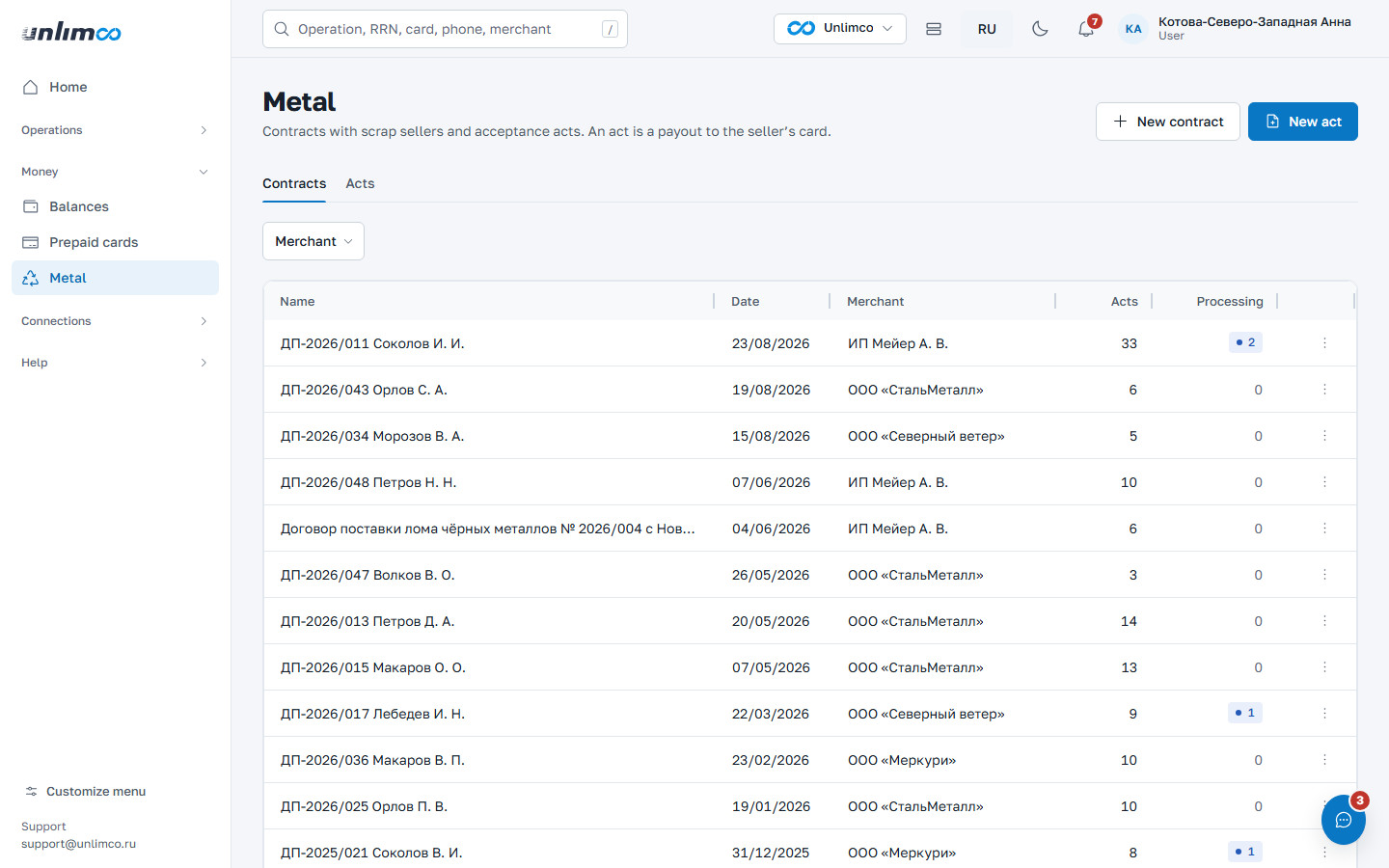
- Contracts tab.
- Certificates tab.
- New contract: supplier details.
- New certificate: a payout under a contract.
A contract contains the supplier’s details: passport, full name, date of birth, contacts and addresses. A contract that has certificates in progress cannot be deleted. A certificate is created under a contract: the type of metal (ferrous or non-ferrous) and the items; the amount is calculated from them (weight × price). The card number for the payout is entered anew in each certificate and is not stored anywhere. The payout is sent after confirmation in the window. Certificate statuses: Not active, Processing, Paid, Payout declined, Error. A certificate can be downloaded as .xlsx.
7. Antifraud and declines
Two sections that help you understand why operations fail.
7.1 Antifraud: card, phone, TIN and IP checks
Antifraud checks data against the databases of partner banks and external services. A match means the bank will decline an operation with this data. Select a merchant that has antifraud access and run the check before sending a payout.
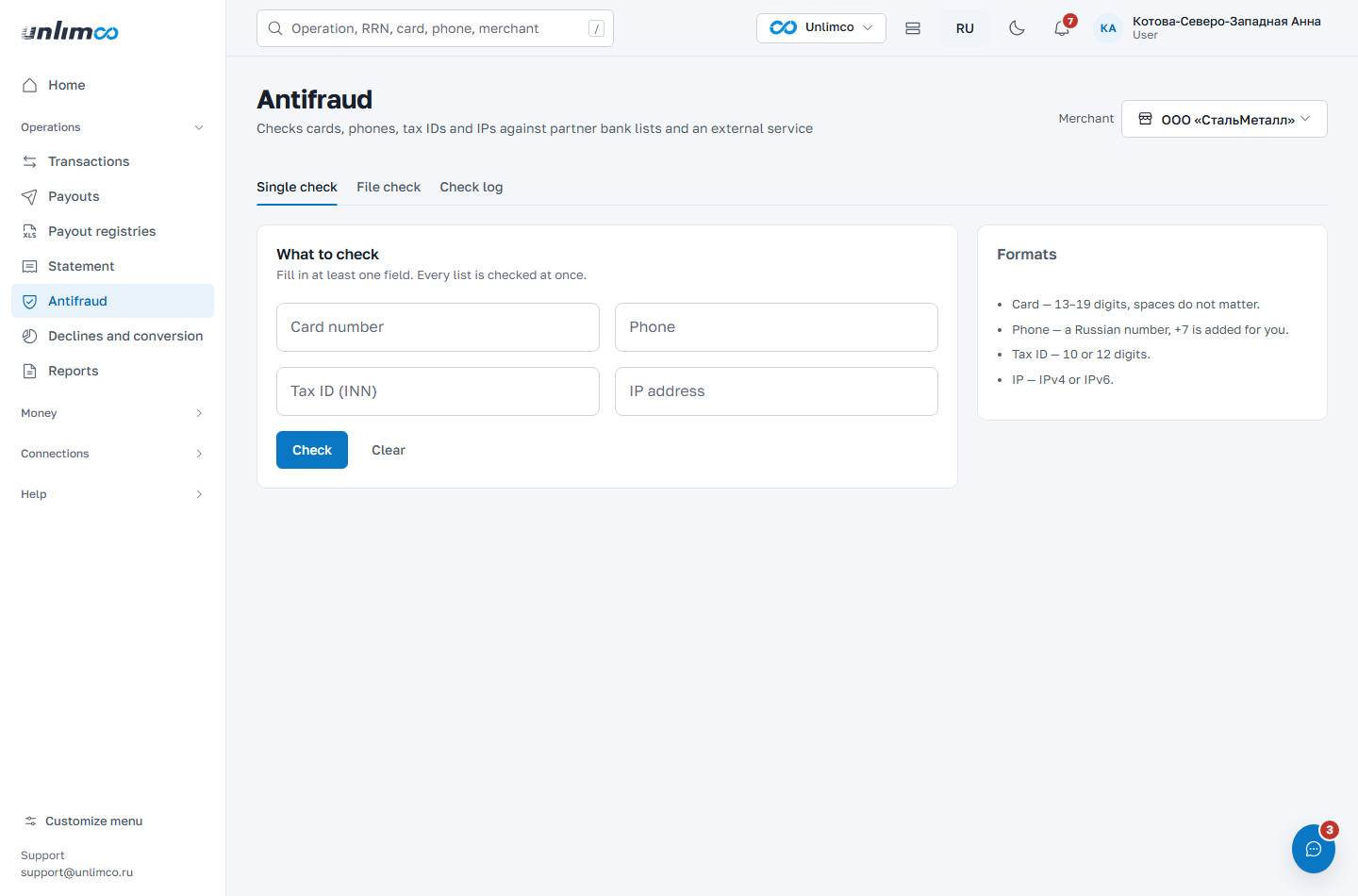
- Single check: one card, phone, TIN or IP.
- File check: many values at once.
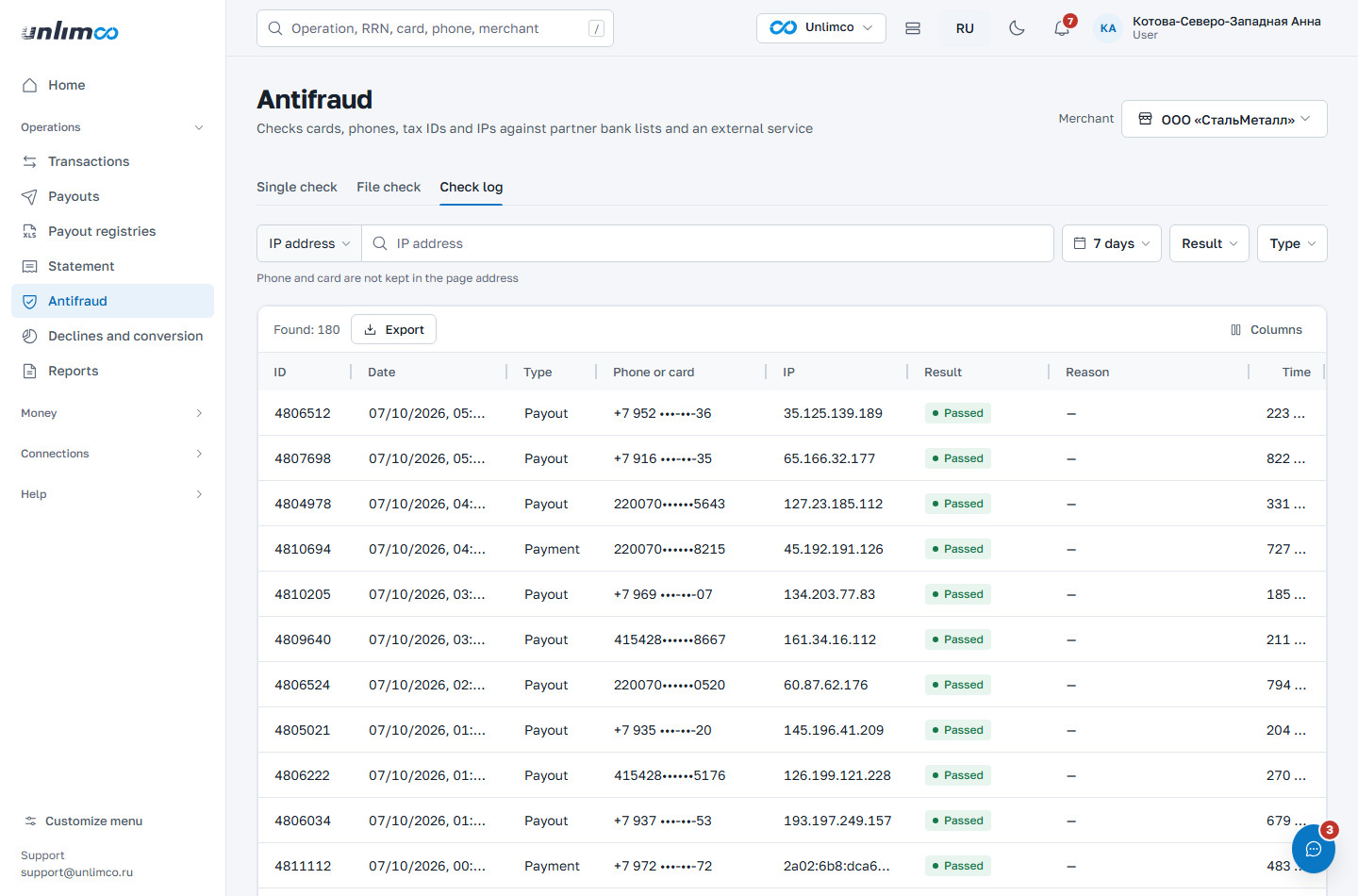
- Check log: what was checked in your operations.
Single check. Fill in at least one field: card number, phone, TIN or IP address. The check runs across all databases at once. Check passed means there are no matches. Blocked means the data was found, and the table shows exactly where. If an external service doesn’t respond, the result is marked as incomplete.
File check. Upload an XLSX, XLS or CSV file up to 5 MB and 1,000 rows. The first
row must contain the headers card_pan, phone, inn,
ip (at least one column is required). The result can be downloaded as CSV; card
numbers in it are masked.
Check log. All checks the system made on your incoming payments and payouts: date, type, phone or card, result and reason. Filter by period, result, type and the last four digits of the card.
7.2 Declines and conversion
Conversion is the share of successful operations out of all created ones. The section shows it by payment method and compares it with the same previous period. The table shows the main decline reason for each method, and the Show declines button opens the list of those operations in Transactions.
Below are the Decline reasons for the period. The most common ones:
| Reason | What it means |
|---|---|
| Insufficient funds | The client didn’t have enough money on the card. They can pay with another card. |
| Antifraud decline | The operation was stopped by our checks; it never reached the bank. |
| Card blocked | The issuing bank has blocked the card. A retry with this card won’t work. |
| Limit exceeded | The client’s bank limit on amount or number of operations was triggered. The client can raise the limit at their bank. |
| Partner bank did not respond | Connection failure. The money was not debited; the payment can be retried. |
| Invalid recipient details | The recipient’s bank couldn’t find the account. Check the card or phone number and repeat the payout. |
| Recipient’s bank rejected the transfer | The bank refused without explanation. The money was returned to the connection balance. |
| Declined manually | A Unlimco employee declined the operation after review. |
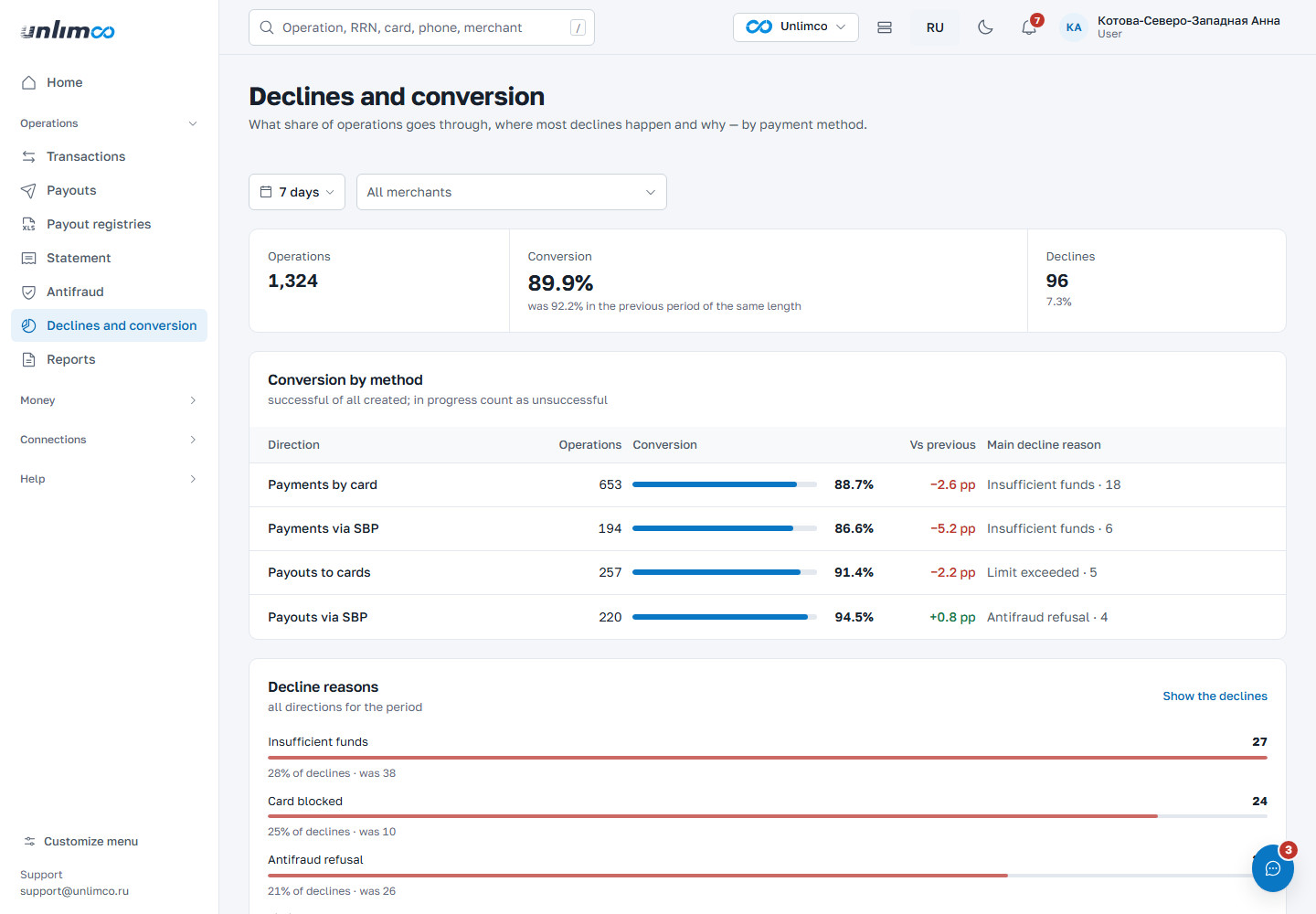
The Reports item in the Operations group is a placeholder for now. Scheduled reports are set up in your profile, on the Reports tab.
8. Merchants and connections
A merchant is your company or project in the system. A connection is a merchant terminal at a specific partner bank, with its own balance and tariffs.
8.1 List of merchants
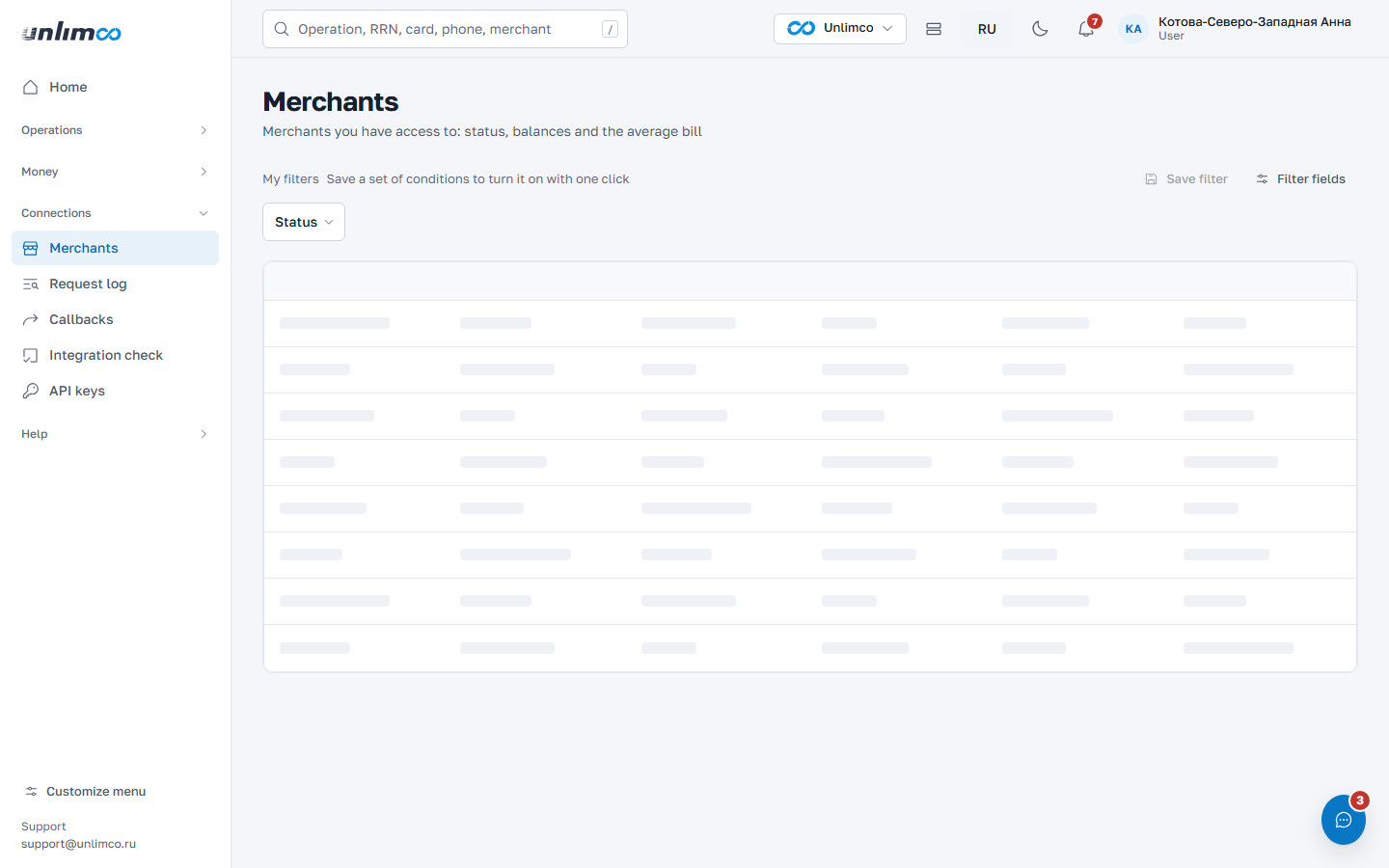
Only merchants you have access to are shown. The table contains the name, website, status (Active or Blocked), and the average payment and payout. You can filter by status. An empty list means you haven’t been added to any merchant yet: write to your administrator.
8.2 Merchant page
Balances are at the top. A merchant has three figures; hover over the i icon next to the name to see what each one means. Below are general details (merchant ID, name, TIN, description, website, creation date) and the list of connections.
Each connection shows the bank, connection number, status (Active or Off), currency and balance. The Tariffs button reveals the fees: for incoming payments, for card payouts and for SBP. If tariffs are not specified, check with your manager. The shared by 2 terminals mark means one balance for several terminals. The Statement button at the top opens this merchant’s statement.
9. Integration with your server
The sections of the Connections group are for those who connect their website or system to Unlimco via the API: view requests, handle callbacks, check settings and manage keys. The API itself is described in API documentation.
9.1 Request log
All of your server’s API requests for the last 90 days: creating payments and payouts, payment and payout status, balance. This includes requests for which no operation was created, with the reason and advice on what to fix.
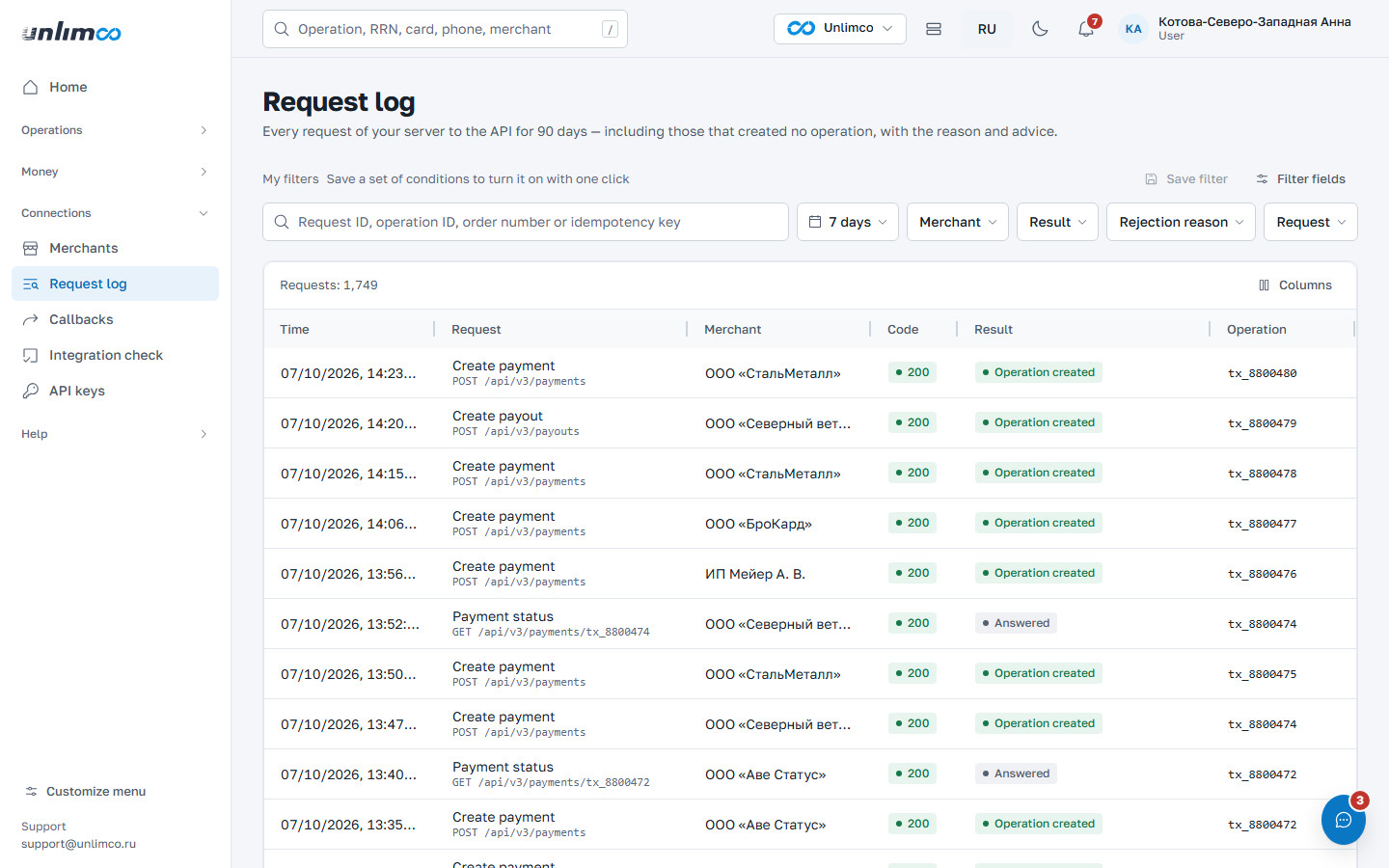
- Result filter: operation created, response received, rejected.
- Decline reason filter.
You can find a request by its ID, operation ID, order number or idempotency key. Click a row to see the full request and response. Card numbers, CVVs, keys and signatures in the log are masked.
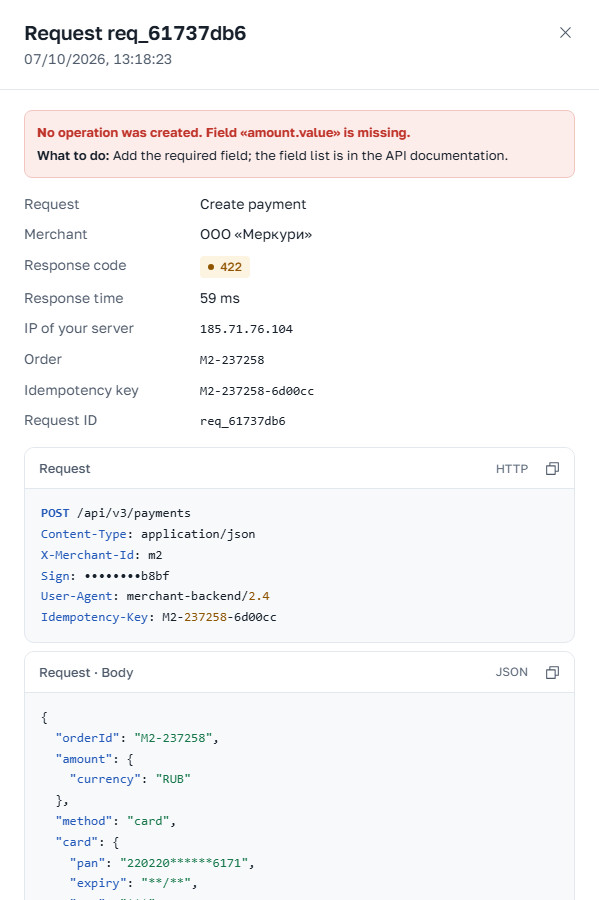
The most common reasons:
| Reason | What to do |
|---|---|
| Signature mismatch | The signature is calculated from the request body exactly as sent: the same spaces and field order. Check it in Integration check. |
| API key not found | The key may have been reissued. Get the current one in the API keys section. |
| Extra or missing field | Remove the extra field or add the required one. The list of fields is in the API documentation. |
| Invalid field value | Check the format. For example, the card expiry is MM/YY, with the month from 01 to 12. |
| Idempotency key already used | A request with this key but a different body has already been made. A new operation needs a new key. |
| Insufficient balance | Top up the balance or reduce the amount. |
| Amount limit exceeded | Split the amount into several operations or write to support. |
| IP not allowed | The request came from an address that isn’t on the allowed list. Check the IP in Integration check. |
| Merchant blocked | Operations are temporarily unavailable. Write to support. |
| Too many requests | Wait and retry later with the same idempotency key. |
| Bank temporarily unavailable | The operation was not created and no money was debited. Retry the request later with the same idempotency key. |
9.2 Callbacks
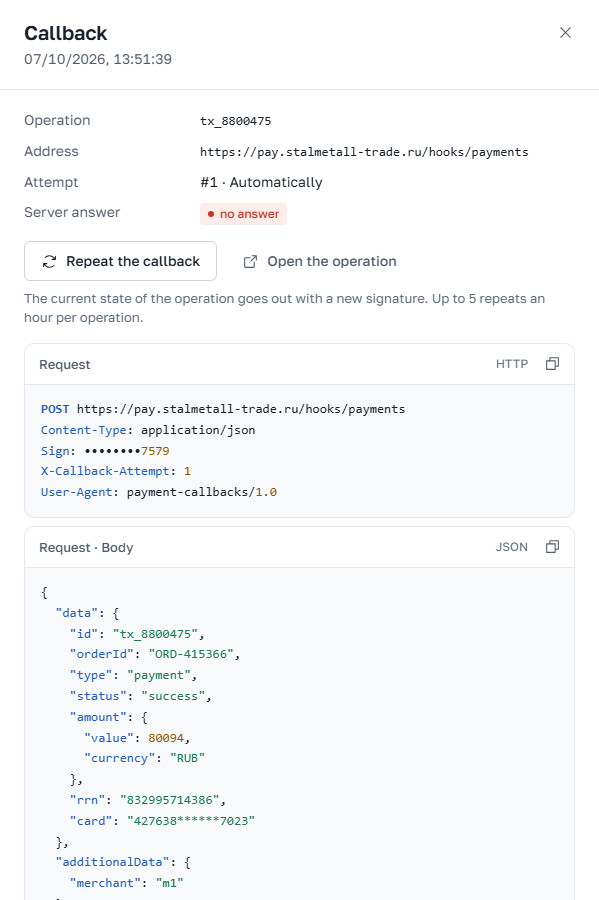
A callback is the message we use to tell your server the result of an operation. It is a POST
request with a JSON body and a signature in the Sign header. Your server must
respond with code 200: only then is the callback considered delivered. If there is no response,
we resend it on a schedule, and when the automatic attempts are over, you can resend it
manually.
At the top of the page are the callback addresses for each connection, separately for incoming payments and payouts. If no address is set, callbacks are not sent: pass the address in the request or write to support.
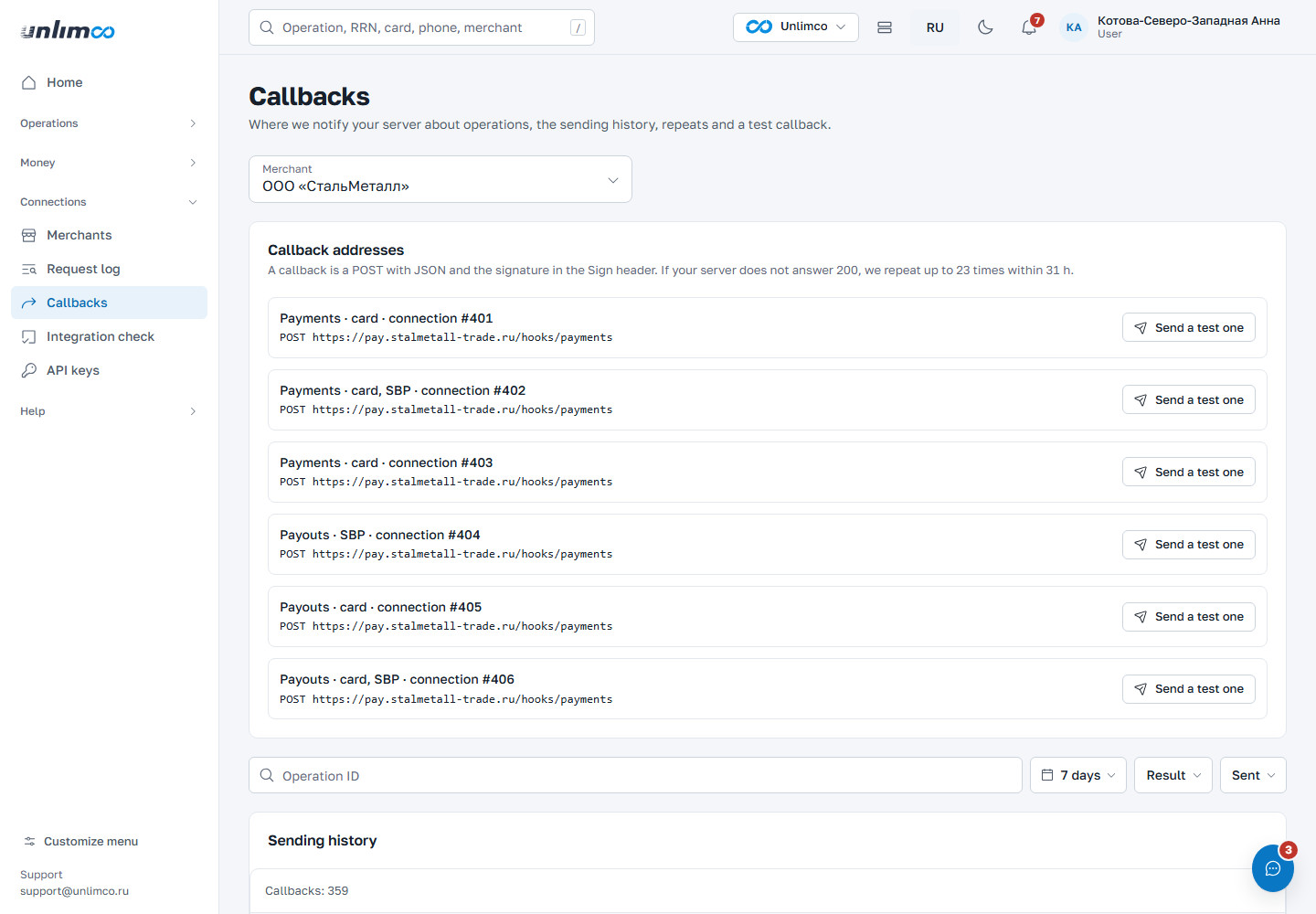
- Send test: a test callback to the connection address.
- Sending history: what we sent and when.
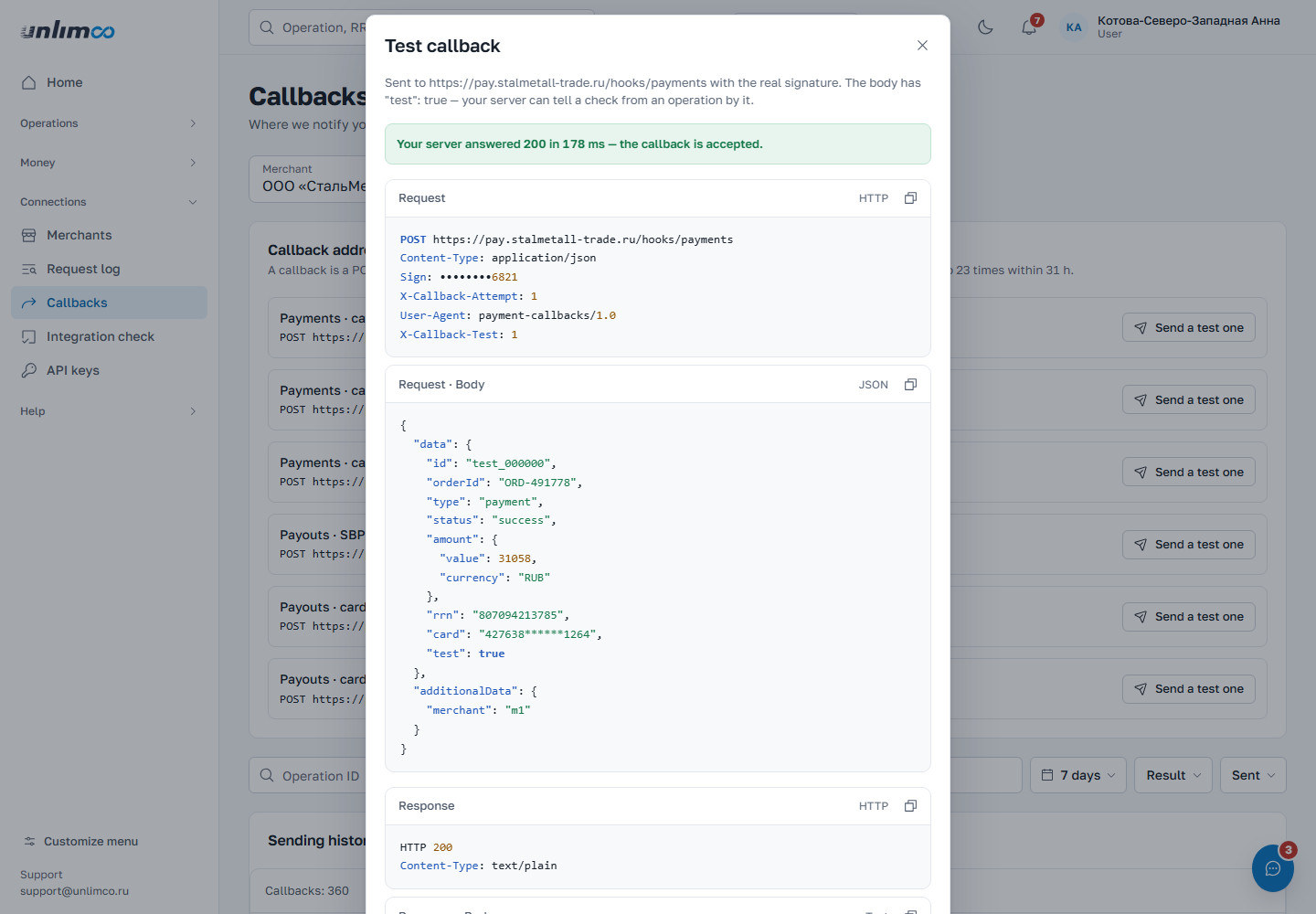
The test callback is sent with a real signature, and its body contains
"test": true — that is how your server can tell a test from an operation. The result
is shown immediately: the server response and the time.
In the history you can search by operation ID and filter by result (Delivered, Not delivered) and by sending type (automatic, manual resend, test). A row opens the sending card with the Resend callback button. The current state of the operation is sent with a new signature. One operation can be resent up to 5 times per hour.
9.3 Integration check
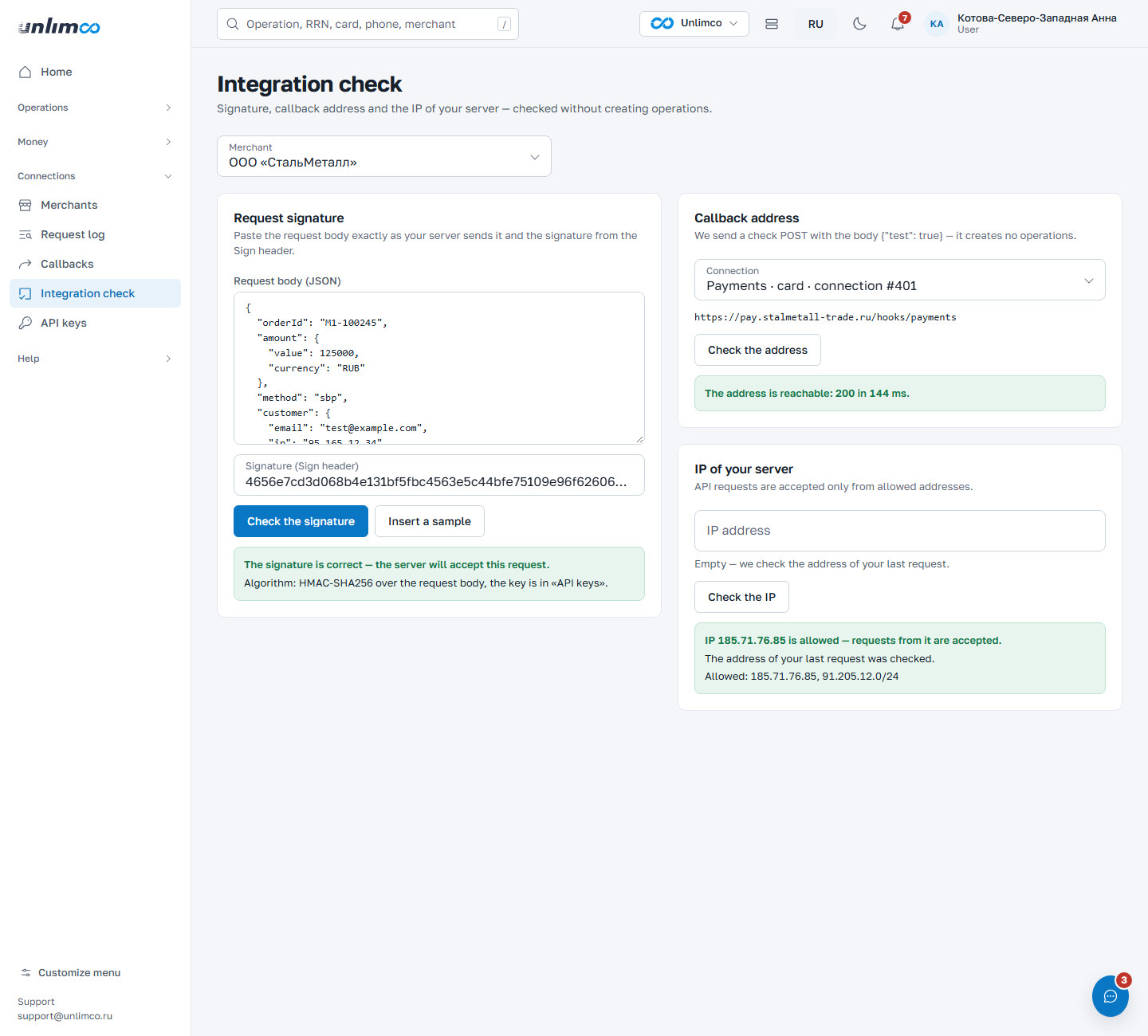
Three checks that don’t create any operations. They help when requests don’t go through.
| Check | What it does |
|---|---|
| Request signature | Paste the request body exactly as your server sends it, and the signature from the
Sign header. The Insert example button fills the fields
with an example. If the signature doesn’t match, a hint explains the likely cause:
spaces, field order, encoding, letter case. |
| Callback address | Sends a test POST with the body {"test": true} and tells you whether the
address is reachable. The address must start with https://, be
accessible from the internet and have a valid certificate. |
| Your server’s IP | API requests are accepted only from allowed addresses. If the field is empty, the address of your last request is checked. If the address you need isn’t on the list, it can be added through support. |
9.4 Where to find the history: logs
The dashboard has several logs, each answering a different question. All of them are read-only.
| Log | What it contains | How to search |
|---|---|---|
| Request log | All requests from your server to the API for 90 days, including those for which no operation was created, with the reason | By request ID, operation ID, order number, idempotency key. Filters: result and decline reason |
| Sending history (Callbacks section) | Which notifications we sent to your server and how it responded | By operation ID. Filters: result (delivered or not) and sending type |
| Check log (Antifraud section) | Every check the system made on your operations: date, type, result, reason | By period, result, type and last four digits of the card |
| Operation path (operation card) | Everything that happened to one operation: request, checks, bank, notifications | Opened from the transactions list or from search |
| Statement | Money movements on a connection: credits, fees, payouts, top-ups | Smart search: amount, range, number, card. Filters: connection, period, type |
Card numbers, CVVs, keys and signatures are masked in all logs. What we store and for how long is stated under each log.
9.5 API keys
Your server signs requests with the key. For each merchant you can see when the key was issued and when it was last used. The key is hidden. To view or reissue it, you need to confirm the action with a confirmation code, and every action is logged.
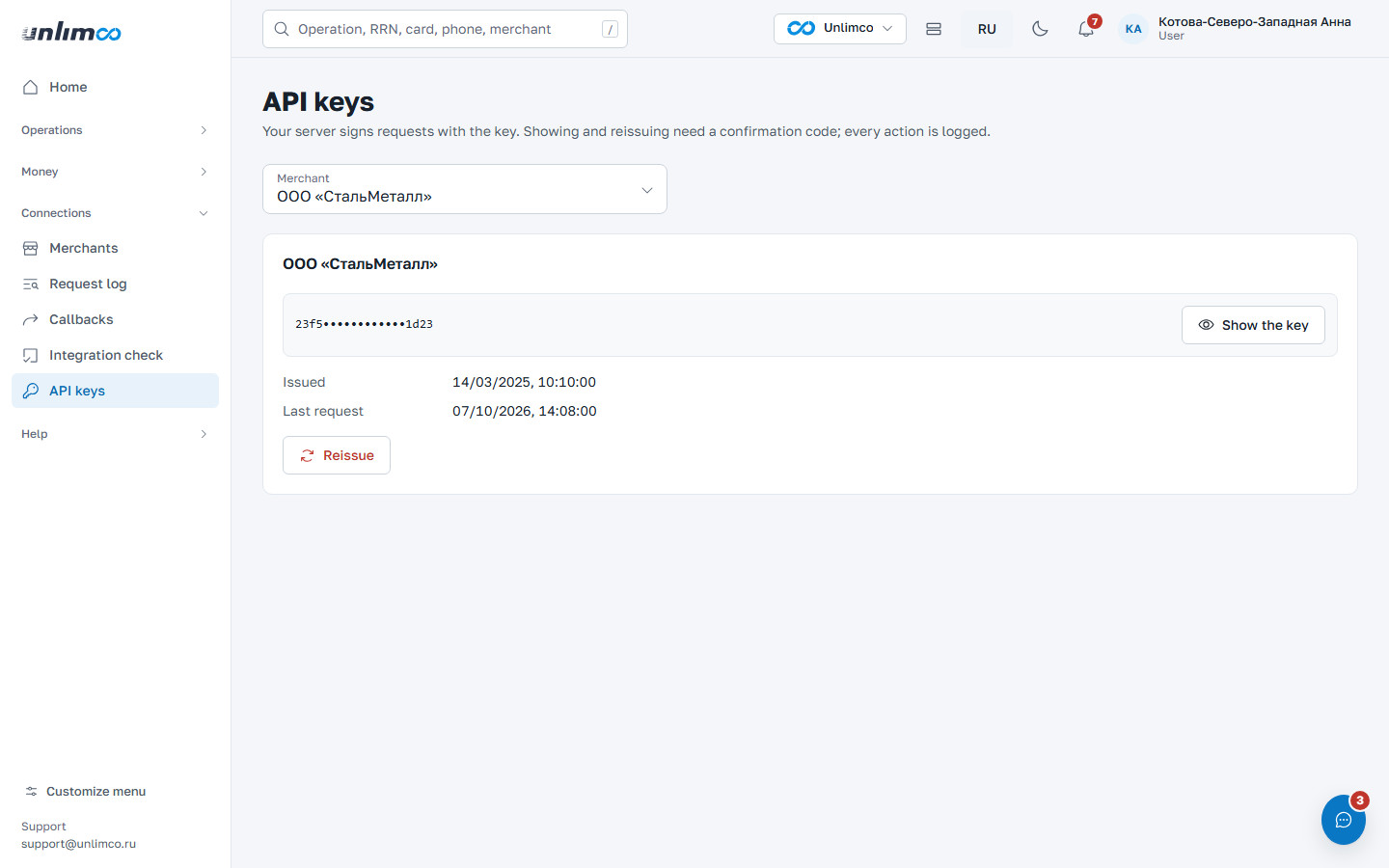
- Show key: the key stays visible until you close the page.
- Reissue: issue a new key.
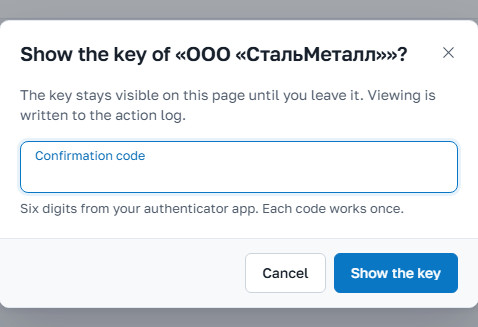
After a reissue, the old key stops working immediately. Requests signed with it are rejected until you install the new key on your server. Reissue the key only when you are ready to replace it right away.
10. Help
The Help menu group: support, secret chats, assistant, mobile app and API documentation.
10.1 Support requests
The Support section is your correspondence with Unlimco staff: replies arrive here and by email. We respond within an hour during business hours. The list of requests is on the left, the selected request on the right. Statuses: Open, Awaiting your reply, Closed.
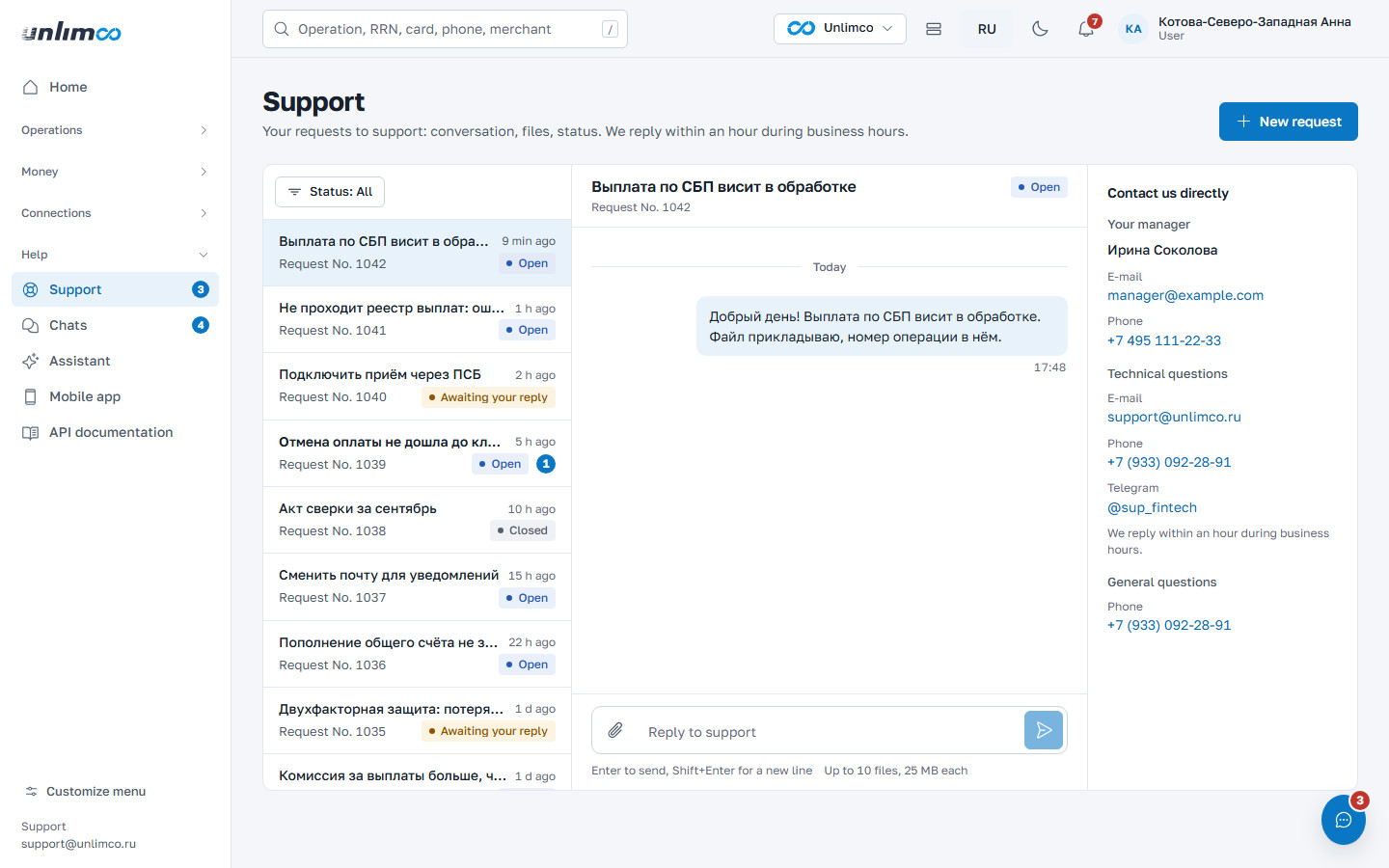
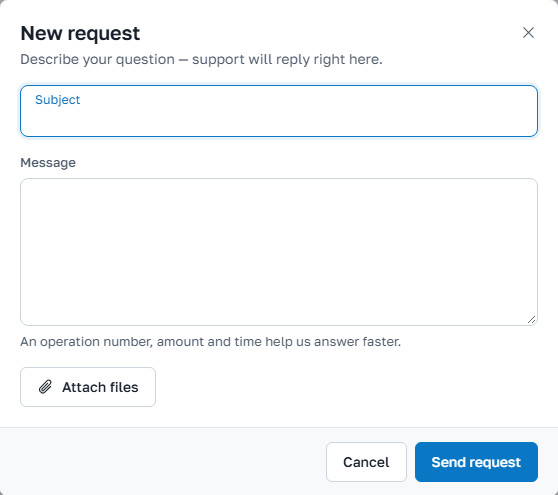
To write, click New request. Enter the subject and text and attach files if needed. Including the operation number, amount and time helps us respond faster. You can edit your message within 15 minutes after sending. You can’t write to a closed request; create a new one instead.
The right side of the page shows the contacts of your manager and technical support (also listed in Contacts). The Support button in the corner of the screen opens your latest requests from any section.
10.2 Secret chats
For details, keys and passwords that shouldn’t stay in regular correspondence. Messages are encrypted and permanently deleted one day after sending. Start a chat with the New chat button: enter a subject and, optionally, a first message. A Unlimco employee sees the chat right away.
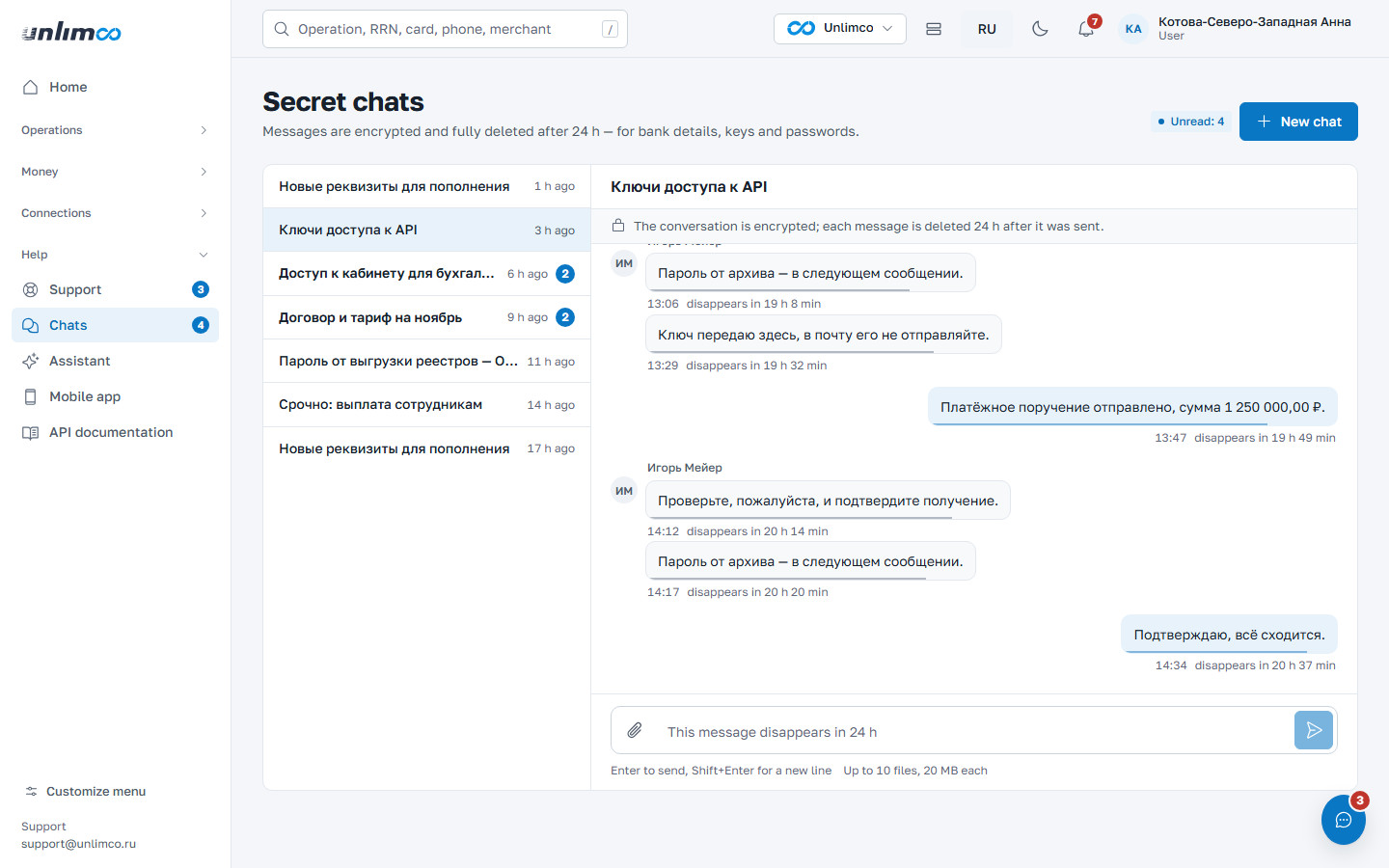
Once the retention period has passed, the correspondence can’t be restored. If you need a record, save what you need yourself.
10.3 Assistant
The assistant answers questions about your data in Unlimco: operations, turnover, balances, registries, exports. It only reads data and can make mistakes, so verify figures against the reports. You can attach a registry file and ask how to convert it to the required format. The number of questions per day is limited.
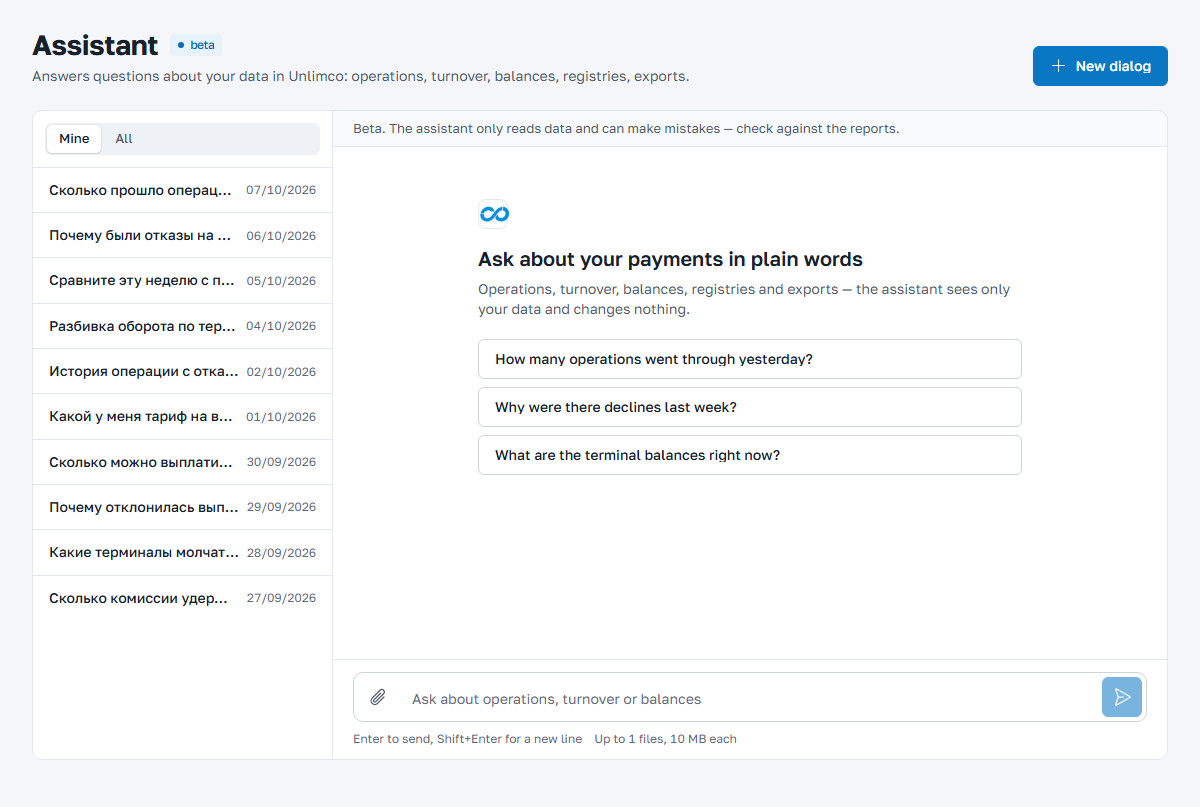
The assistant isn’t available to everyone. If the item isn’t in your menu or the dashboard says you don’t have access, contact your manager.
10.4 Mobile app
The dashboard on a phone with Android 8 or later: sign-in with a QR code, payment notifications, fingerprint sign-in. The Mobile app page has a Download APK button and a QR code for sign-in.
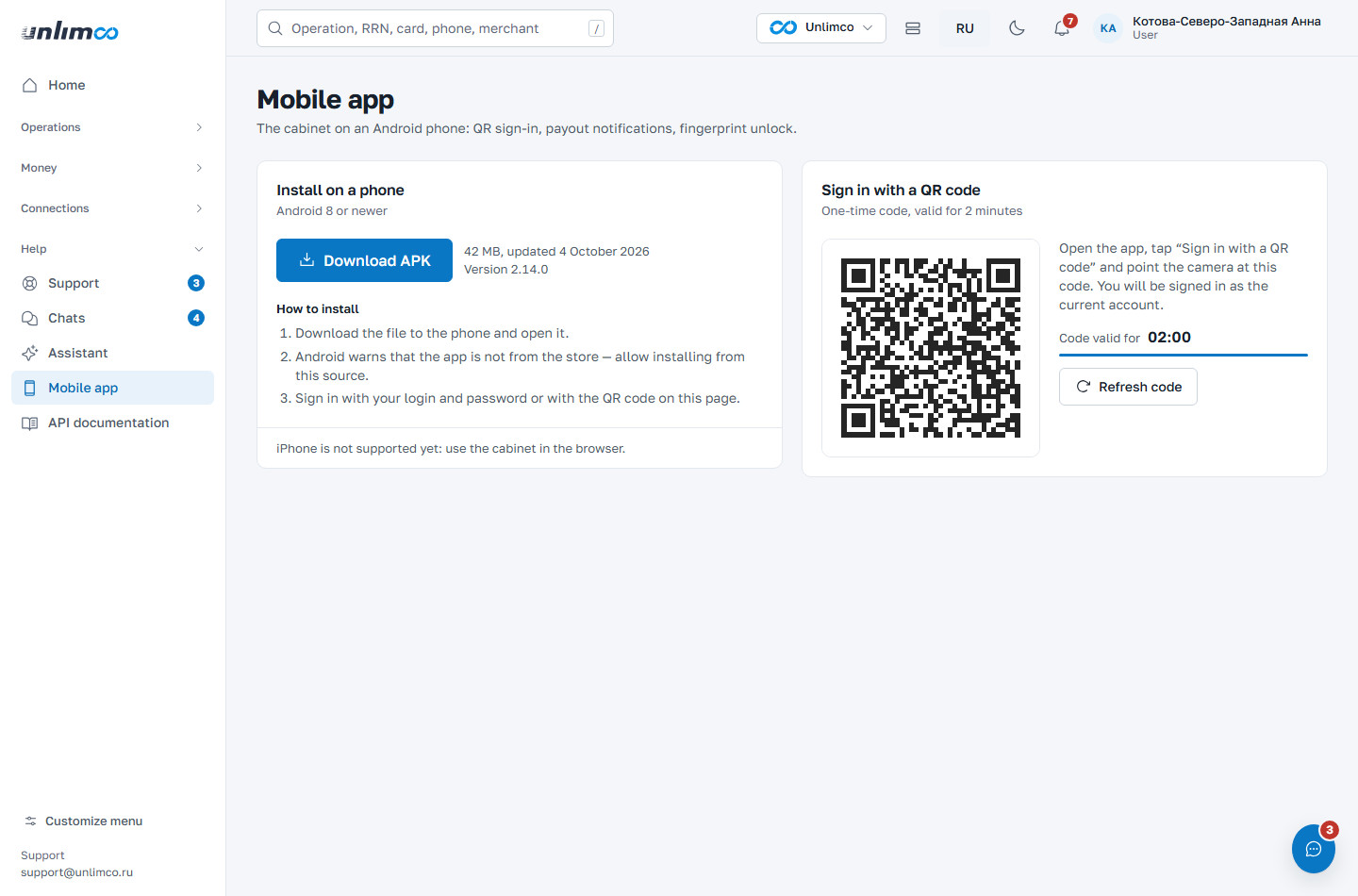
- Download the file to your phone and open it.
- Android will warn that the app is not from the store. Allow installation from this source.
- Sign in with your login and password, or scan the QR code from this page. The code is single-use and valid for 2 minutes. If it expires, click Refresh code.
The app sign-in screen has a Sign in with QR code button: point the camera at the code on the page in your browser. When a new version is released, the app shows a prompt to update.
iPhone is not supported yet: use the dashboard in your browser.
10.5 API documentation
The API documentation item opens a description of the methods: how to create a payment and a payout, how to sign requests, how to receive callbacks. This page is available without signing in, so you can share the link with your developer.
11. Profile and security
Open the profile by clicking your name in the top right corner. It contains your personal data, sign-in and device protection, and email settings. The page is divided into tabs.
11.1 Personal data and password
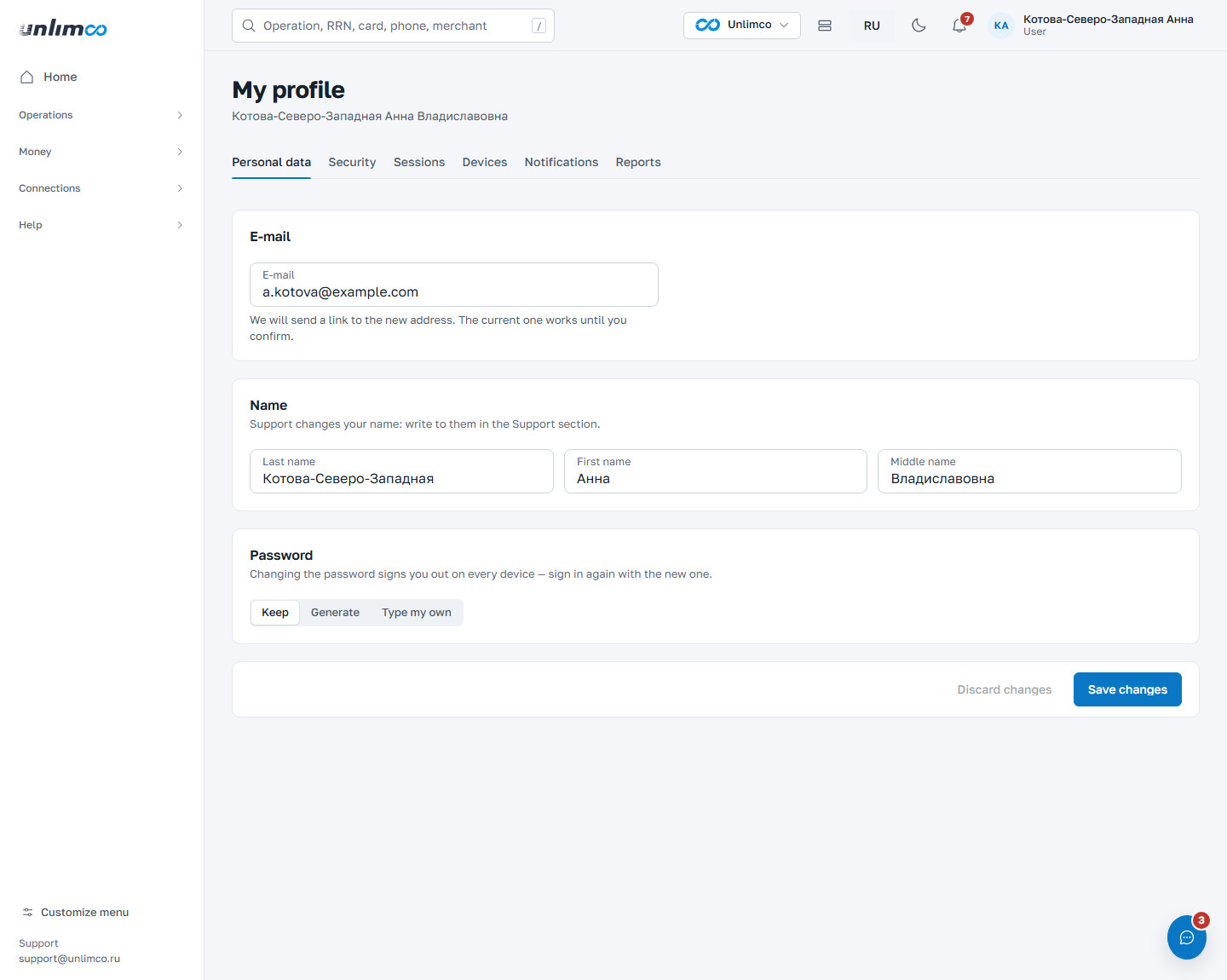
Here you can change your email and password. A confirmation link is sent to the new address; the old address keeps working until you confirm. To change your full name, write to support in the Support section.
The password can be set in one of three ways: Keep, Generate or Type my own. Requirements: no shorter than the specified length, uppercase and lowercase Latin letters, digits and special characters. Met requirements are ticked in the list.
After a password change, the dashboard signs you out on all devices, including this one. A generated password is shown only once: save it in your password manager before confirming.
11.2 Security: two-factor protection and IP access
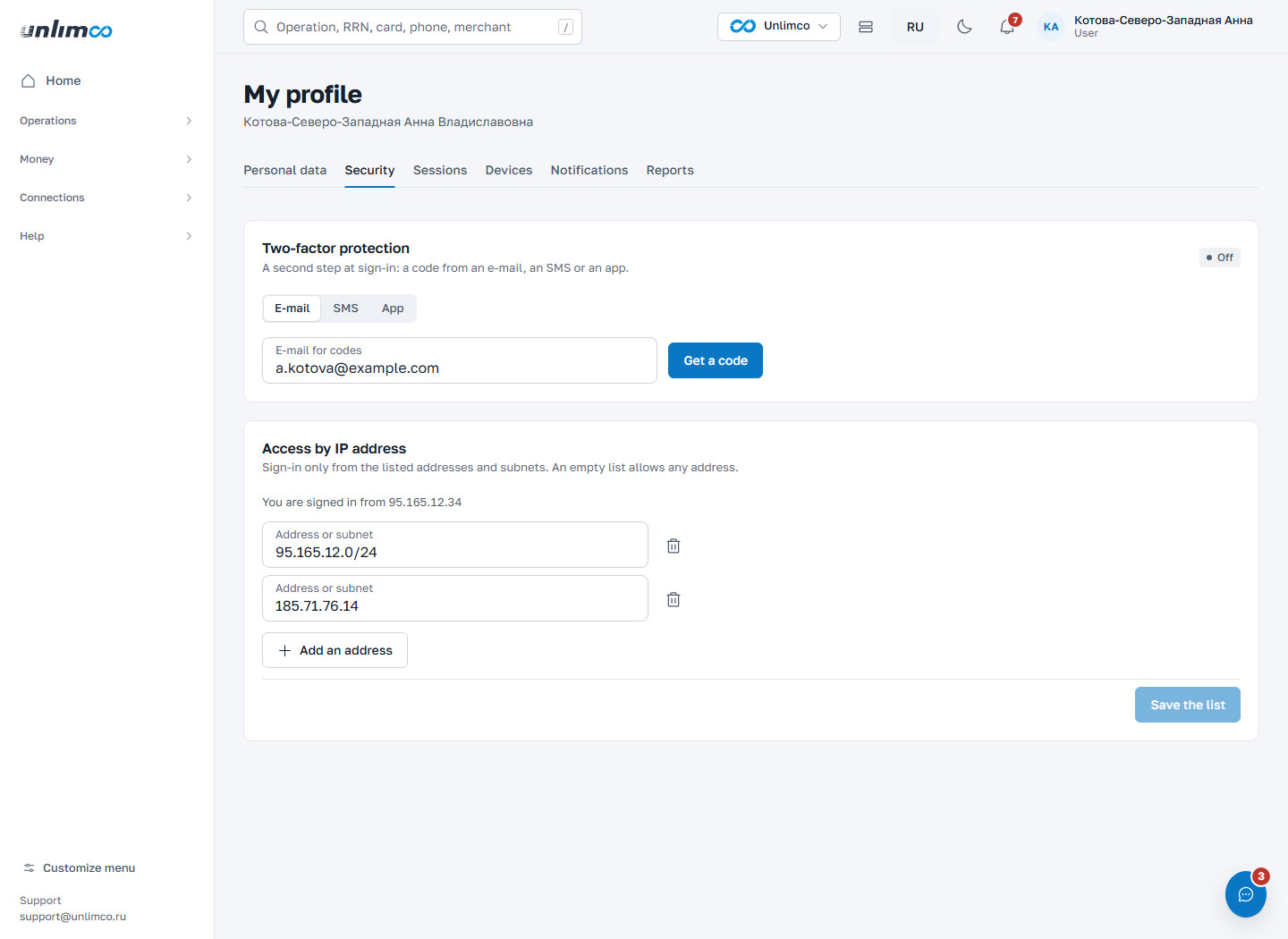
Two-factor protection adds a code to your password at sign-in. Ways to receive the code: E-mail, SMS or App (Google Authenticator, Yandex Key and similar). For the app, scan the QR code and enter the first code. For payout and other sensitive permissions, protection is mandatory and cannot be turned off. To change the method, turn protection off and set it up again. Apart from sign-in, the dashboard asks for a code only when you show or reissue an API key (using the same method). Payouts, cancellations and other actions are not confirmed with a code; the button in the confirmation window is enough.
Access by IP address limits sign-in to the listed addresses and subnets. An empty list allows sign-in from any address. The dashboard shows the address you are currently signed in from. If your address is not on the list, it warns you before saving that you won’t be able to sign in from it afterwards.
11.3 Sessions and devices
The Sessions tab shows where you are signed in: browsers and the app, sign-in time and last activity. If you see an unfamiliar sign-in, end it and change your password. The End all except this one button closes all other sessions.
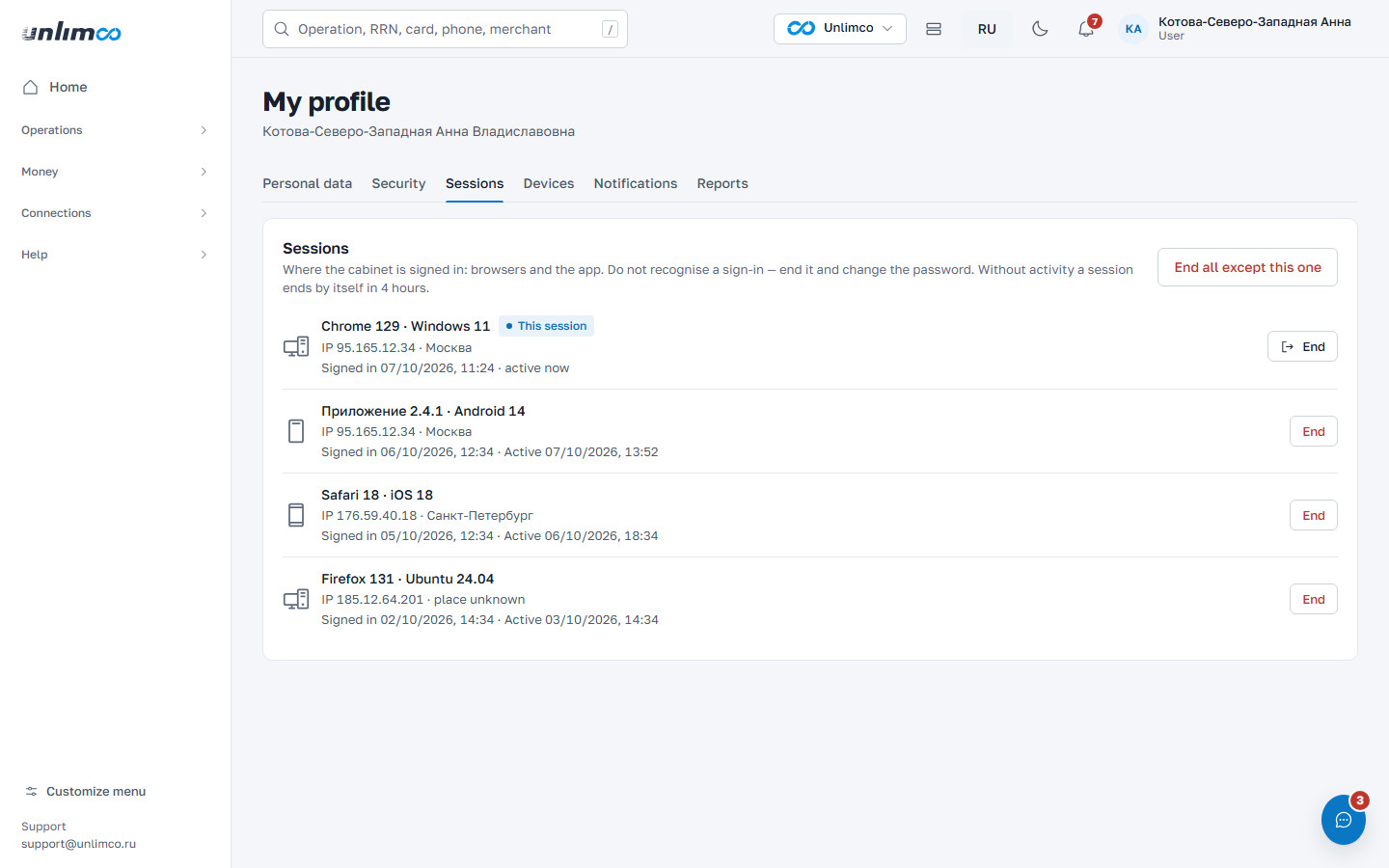
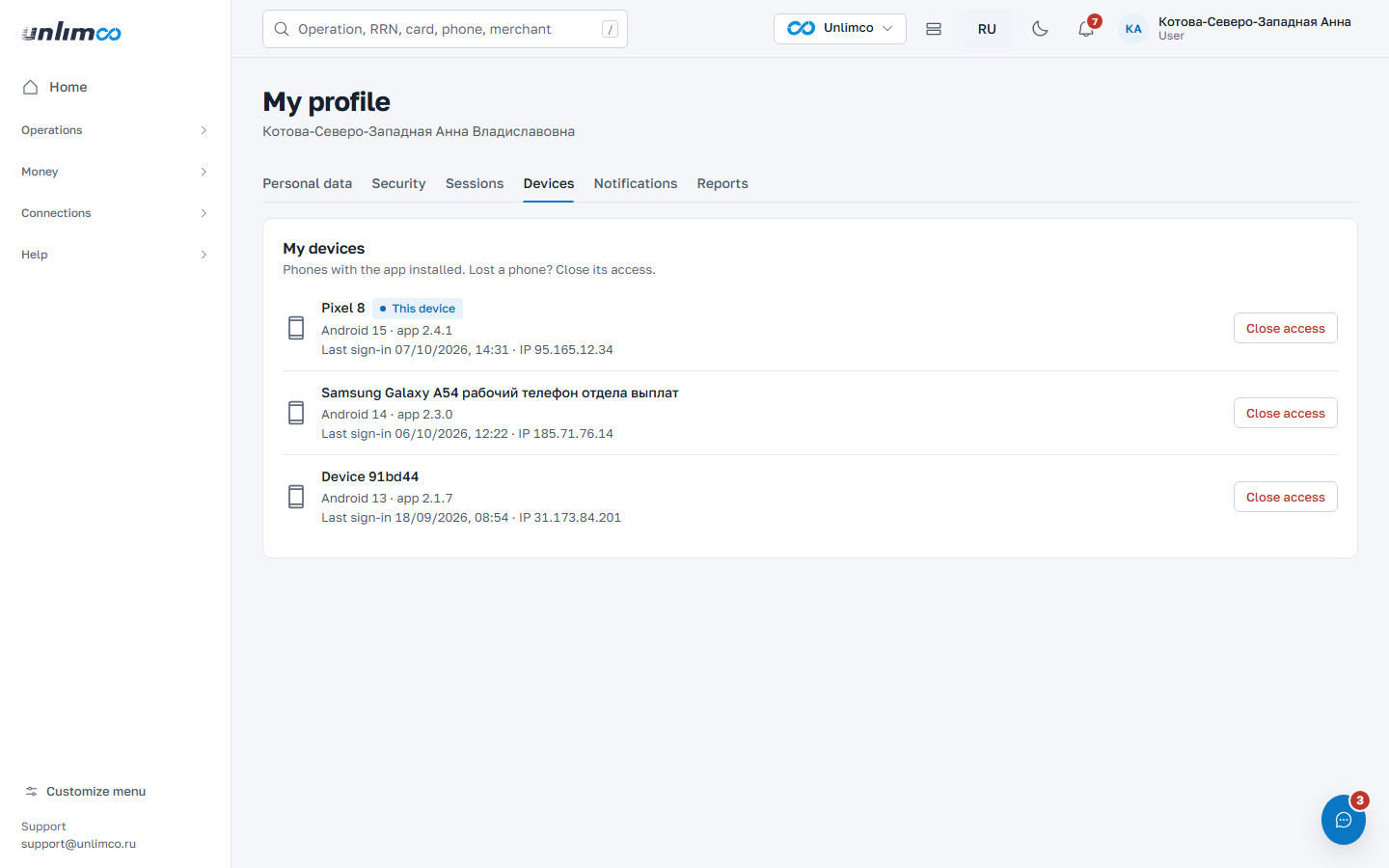
The Devices tab shows phones with the app installed. If a phone is lost, click Close access. The phone loses access immediately and can sign in again only with the login and password.
11.4 Notifications
By default, the dashboard sends nothing. Turn on only what you need. For each event, choose where to receive it: in the mobile app or by email. The email about a sign-in from a new device cannot be turned off.
You can set your own balance threshold: if the balance drops below it, you get an alert. Sending times follow your time zone.
11.5 Scheduled reports
The Reports tab emails files on a schedule — for example, a daily summary or weekly operations for your accountant. Click New report and choose:
| Parameter | Options |
|---|---|
| What to send | Summary (turnover, number of operations, share of successful ones), operations, payouts, declines. |
| How often | Every day, once a week (with a choice of weekday), once a month (a day from 1 to 28). |
| Sending hour | From 0 to 23 in your time zone. |
| Format | Excel, CSV, 1C file, PDF. |
| Recipients | Up to 10 addresses, separated by commas or line breaks. |
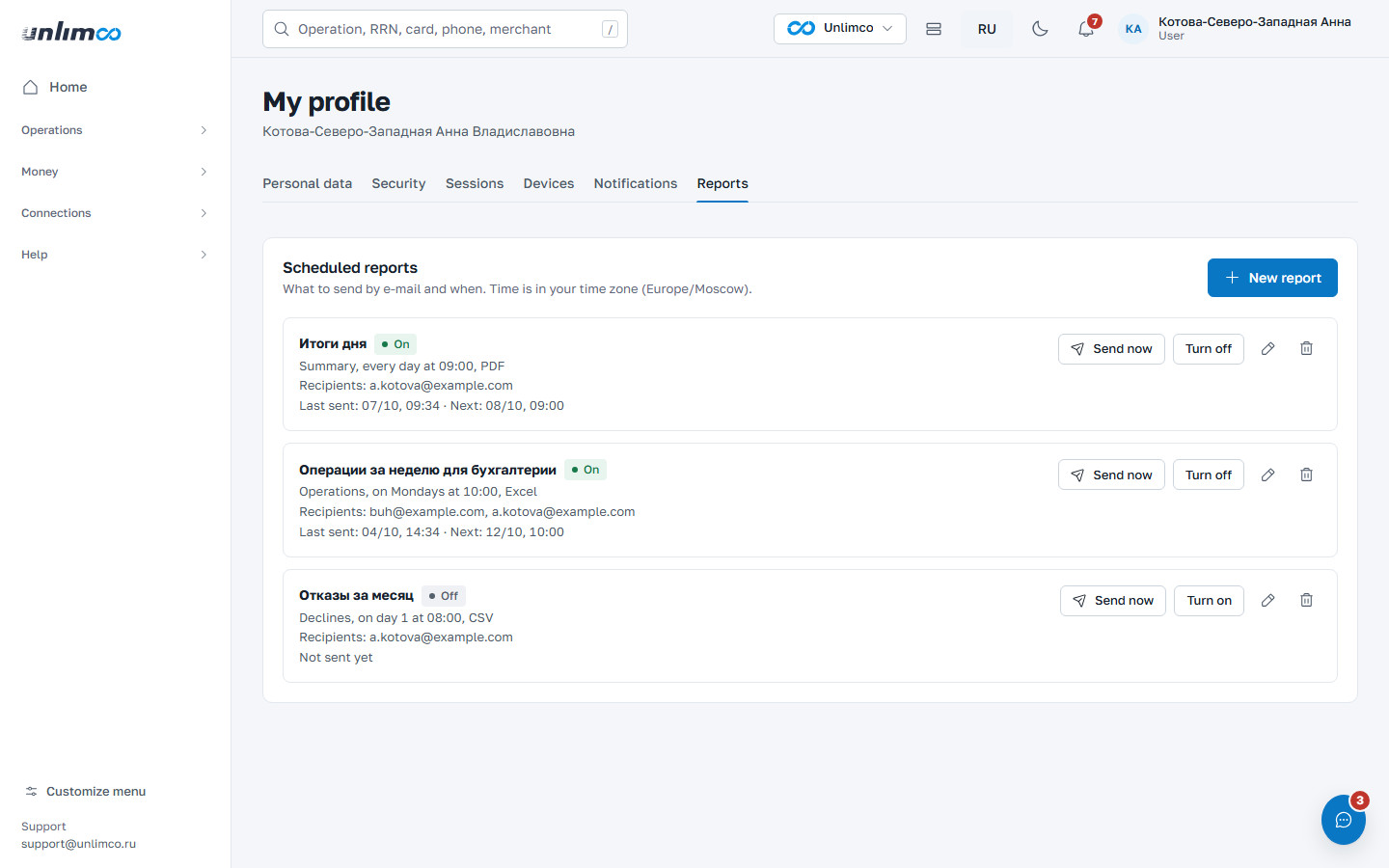
A report can be turned on and off, edited, deleted, or sent right away with the Send now button. Under each report you can see when it was last sent and when it will be sent next.
12. How to: common tasks
Short instructions for everyday work. See the chapters above for details.
12.1 Make a payout
Task: send money to one recipient
- Open Payouts and click New payout. Choose the To a card or By SBP tab.
- Select the merchant and terminal.
- Enter the card number and recipient’s name, or the phone number and bank. Enter an email or phone for the receipt, and the amount.
- Check the fee and the total to be debited on the right. If the balance isn’t enough, the form shows how much is missing.
- Click Send the payout and confirm in the window.
- Find the payout in the list. Within a few minutes it will have a result.
The payout goes to the bank immediately and cannot be cancelled. If the status doesn’t change within an hour, click Check status at the bank on the card.
12.2 Find an operation and check the notification
Task: the client says the payment went through, but your order isn’t paid
- Enter the order number, RRN, transaction ID or the last four digits of the card in the search bar at the top. Pick the right operation from the suggestions.
- On the card, look at the status and the Operation progress block. The last step, Notification to merchant, shows whether the message reached your server.
- If there is an error or a “500” response, open the Operation path tab and expand What was sent and what your server replied.
- Fix callback handling on your side. Check the address in Integration check.
- Go back to the card and resend the callback with the Resend callback button.
For several operations at once, tick them in Transactions and click Resend notifications.
12.3 Investigate declines
Task: understand why operations fail
- Open Declines and conversion and select the period and merchant.
- Look at the decline reasons and the methods with low conversion.
- Click Show declines to open the list of declined operations.
- Open a few operations. Under the reason, the card explains what it means and what to do.
- If the reason is “Partner bank did not respond” and the date matches an outage, the payment can be retried: the client’s money was not debited.
- For unclear cases, write to support and include the operation number.
12.4 Upload a registry and fix errors
Task: pay many recipients with one file
- Open Payout registries and click Upload a registry.
- Select the method, merchant and terminal.
- Download the sample, fill it in and upload the file.
- Fix the rows with errors in the file and upload it again until there are no errors left. Check for possible duplicates.
- Name the registry and submit it. Confirm the amount.
- Open the registry and watch the row statuses. If the registry gets the Done with errors status, filter the rows by Error, review the reasons and click Retry failed rows.
12.5 Cancel a payment
Task: return a payment to the client
- Find the transaction and open its card. Only a successful payment can be cancelled.
- Click Cancel payment. Check the amount and date in the window.
- Confirm with the Cancel payment button in the window.
- Wait for the “Payment cancelled” message.
- The money is returned to the client through the bank, usually within 1–5 business days.
If the button is missing or inactive, you don’t have permission to cancel operations, the payment wasn’t successful, or it has already been cancelled. Only the full amount can be cancelled.
12.6 Check the balance and reconcile
Task: how much can be paid out, and where do the figures come from?
- On the home page, look at Available for payouts. This is the balance minus the reserved money.
- See the breakdown by connection in the Balances section.
- Open the Statement and select the connection and period. Check credits, debits and fees.
- To get a file for your accountant, click Export or set up a scheduled report in your profile.
12.7 Reissue an API key
Task: the key is compromised or lost
- Open API keys and click Reissue for the merchant you need.
- Confirm with the confirmation code. The old key stops working immediately.
- Copy the new key and install it on your server.
- Check the signature in Integration check and make sure in the Request log that requests go through.
12.8 Block access from a lost phone
Task: the phone is lost or stolen
- Open your profile and the Devices tab.
- Click Close access next to the lost phone.
- On the Sessions tab, end any unfamiliar sessions and change your password.
13. Contacts
Unlimco contacts. They are also shown in the dashboard on the Support page, in the Contact us directly block on the right.
| Where | Contact |
|---|---|
| Technical support mail | support@unlimco.ru |
| Technical support phone number | +7 (933) 092-28-91 |
| Telegram | @sup_fintech |
| General questions, telephone | +7 (933) 092-28-91 |
| Your manager | Maria Alexandrova, m.alexandrova@unlimco.ru, +7 (915) 186-64-42 |
We respond within an hour during business hours. If you are writing about an operation, include its number, amount and time: this helps us respond faster.
Don’t send passwords, keys or payment details in regular correspondence: use secret chats for them.
14. Terms
Words you will come across in the dashboard.
- Merchant
- Your company or project in the system. One user can have access to several merchants.
- Terminal
- The setup for accepting payments or making payouts at a specific partner bank.
- Connection
- A terminal linked to a merchant, with its own balance, fees and tariffs.
- Partner bank
- The bank or processor through which the operation goes.
- Payment (incoming)
- An operation in which the client pays you.
- Currency
- The connection currency: RUB (rubles), KGS (soms) or USD (dollars). Amounts are shown with the currency code; totals are calculated for each currency separately.
- Payout
- An operation in which you send money to a recipient: to a card or via SBP.
- Payment cancellation
- Full cancellation of a successful payment: the whole amount is returned to the client. Partial cancellations are not possible.
- SBP
- Faster Payments System: transfers by phone number.
- BIC
- Bank identification code. Nine digits; used to select the recipient’s bank in SBP.
- RRN
- Bank transaction number, 12 digits. Leading zeros are required. Use it to find an operation at the bank and in your dashboard.
- 3-D Secure
- The client’s confirmation of a payment in their bank’s app or on its page. If the client doesn’t confirm, the operation stays pending and is then declined.
- Conversion
- The share of successful operations out of all created ones. Operations still in progress count as unsuccessful.
- Antifraud
- Checks that stop suspicious operations before they are sent to the bank.
- Callback
- A message to your server about the result of an operation. Signed with the key; expects a 200 response.
- Idempotency key
- A value that tells the system a request is a repeat of the same request, not a new operation.
- Signature
- A control string in the
Signheader. It is calculated from the request body with your API key and proves that the request was sent by you. - API key
- The secret your server uses to sign requests. Issued to the merchant.
- Registry
- A file with a list of payouts that is uploaded to the dashboard.
- Reserved
- Payout money that has gone to the bank but has no result yet. It is not available for new payouts.
- Shared account
- One balance for several terminals. A payout through any of them is debited from it, and it is counted once in the totals.
- Settlement
- Transfer of accumulated money to the merchant. The statement shows how the settlement was paid; you can download the details.
- Label
- Your mark on an operation or registry. Visible to you and your project colleagues.
- EAN
- The prepaid card number used to search for and activate the card.
- Session
- One sign-in to the dashboard from one browser or device.
- Two-factor protection
- A second step at sign-in: a code from an email, SMS or app.
15. Document versions
| Version | Date | Changes |
|---|---|---|
| 1.1 | 11.10.2026 | Sign-in: confirmation code, password recovery, “Remember me”, “Can’t sign in?” hint, language. Smart search in lists, amount ranges, currencies in totals. Logs. Support contacts for your account. |
| 1.0 | 09.10.2026 | First edition for the new dashboard. |